
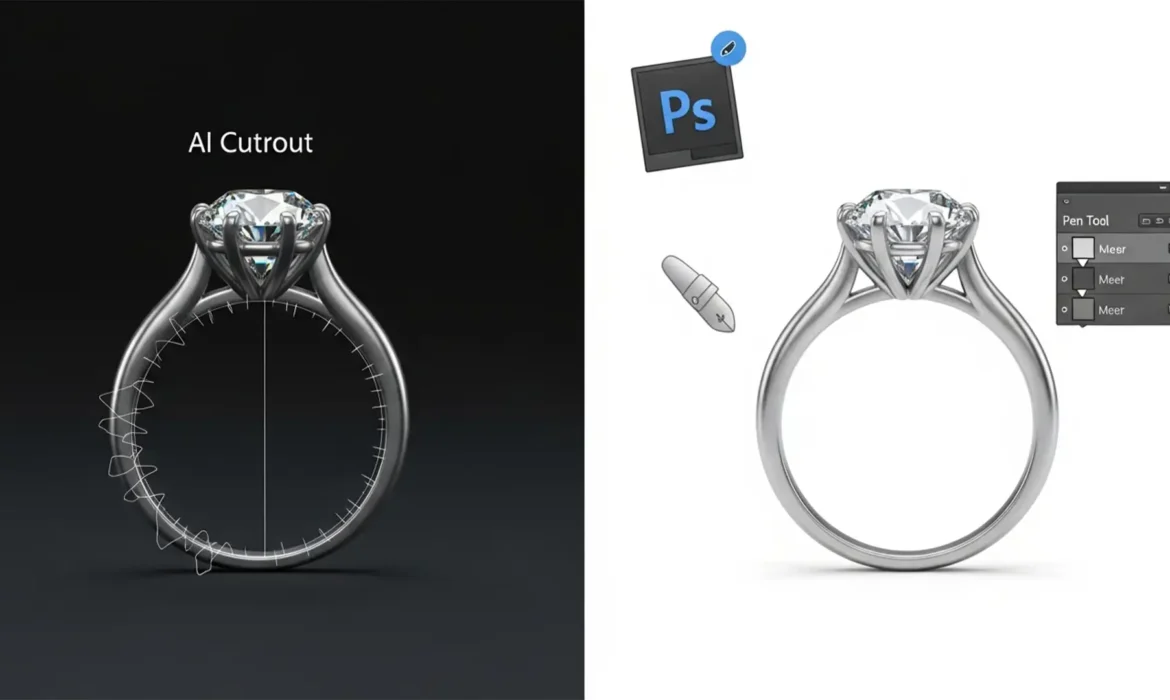
Automated background removal tools like Photoshop’s Contextual Task Bar or remove.bg are incredible time-savers for standard product photography. But if you shoot high-end rings, necklaces, or watches, you already know the frustrating truth: AI fails miserably on jewelry.
Because algorithmic masking relies on contrast and distinct object boundaries, reflective metals and translucent gemstones confuse the machine learning models. The result? Unprofessional edge ghosting, jagged stepping along smooth curves, and clipped diamond prongs. If you want your jewelry catalog to look premium and trustworthy, you cannot rely purely on one-click automation.
In this guide, we will break down the exact manual edge-refinement techniques needed for fixing AI background removal artifacts on jewelry photos, ensuring your products look flawless on pure white backgrounds.
Why AI Fails at Jewelry Background Removal
AI background removal models (specifically those found in Photoshop v24.x-v25.x) are trained on millions of images, but they struggle to process three specific optical characteristics inherent to jewelry:
- Specular Highlights: Bright, blown-out reflections on polished silver or gold often blend seamlessly into white backgrounds, causing the AI to erase parts of the metal.
- Transparency and Refraction: Gemstones and glass refract light. AI cannot differentiate between the internal facets of a diamond and the background showing through it.
- Ambient Color Reflection: Highly polished metals act like mirrors, reflecting the color of the original background.
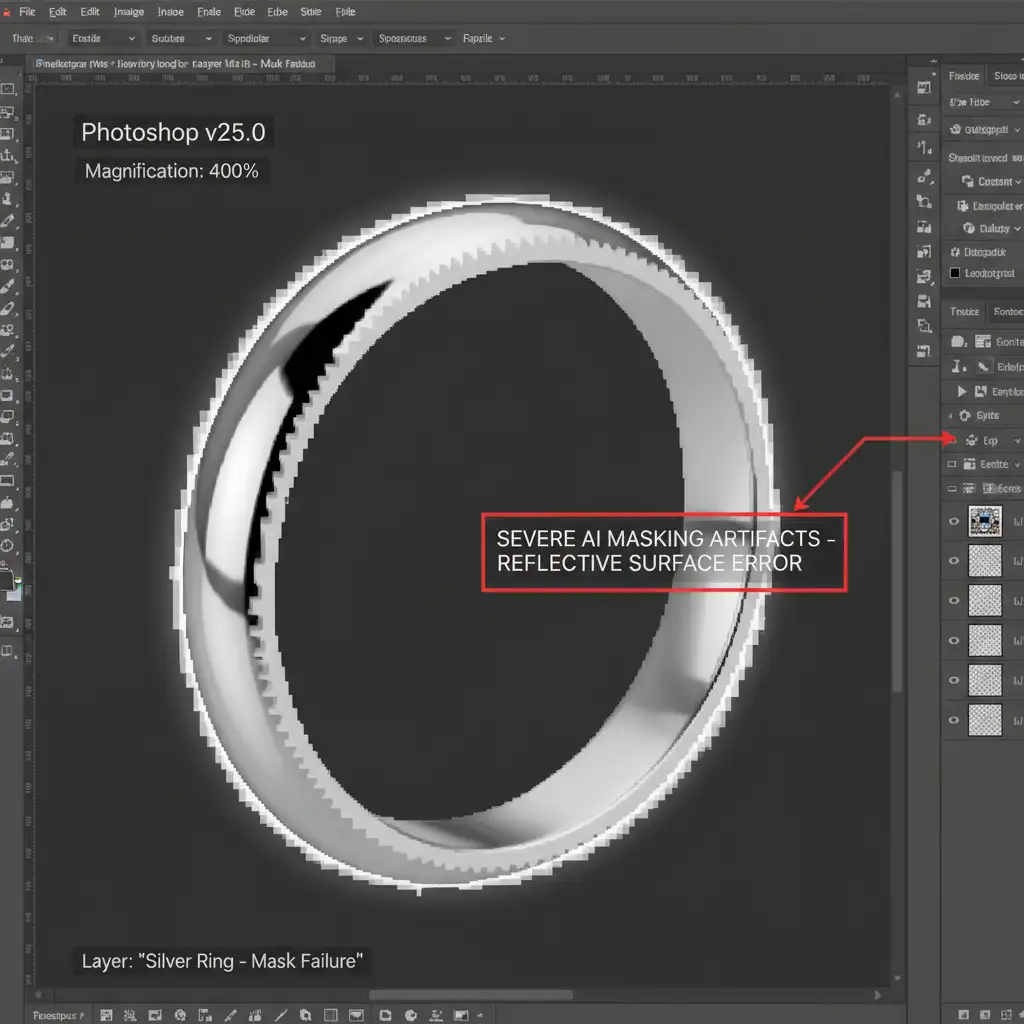
When the algorithm fails, it leaves behind a mess of artifacts. You will typically see stepping (aliased, pixelated lines along curved bands), ghosting (semi-transparent halos around the edges), and clipping (entire sections of delicate chains or prongs completely erased).
3 Pro Methods for Fixing AI Background Removal Artifacts on Jewelry Photos
To restore pristine edges to your jewelry imagery, you need to step beyond automated tools and utilize pixel-level edge reconstruction. Here are three professional workflows, ranging from quick fixes to advanced matting manipulation.
Method A: The Quick Fix Using Select and Mask
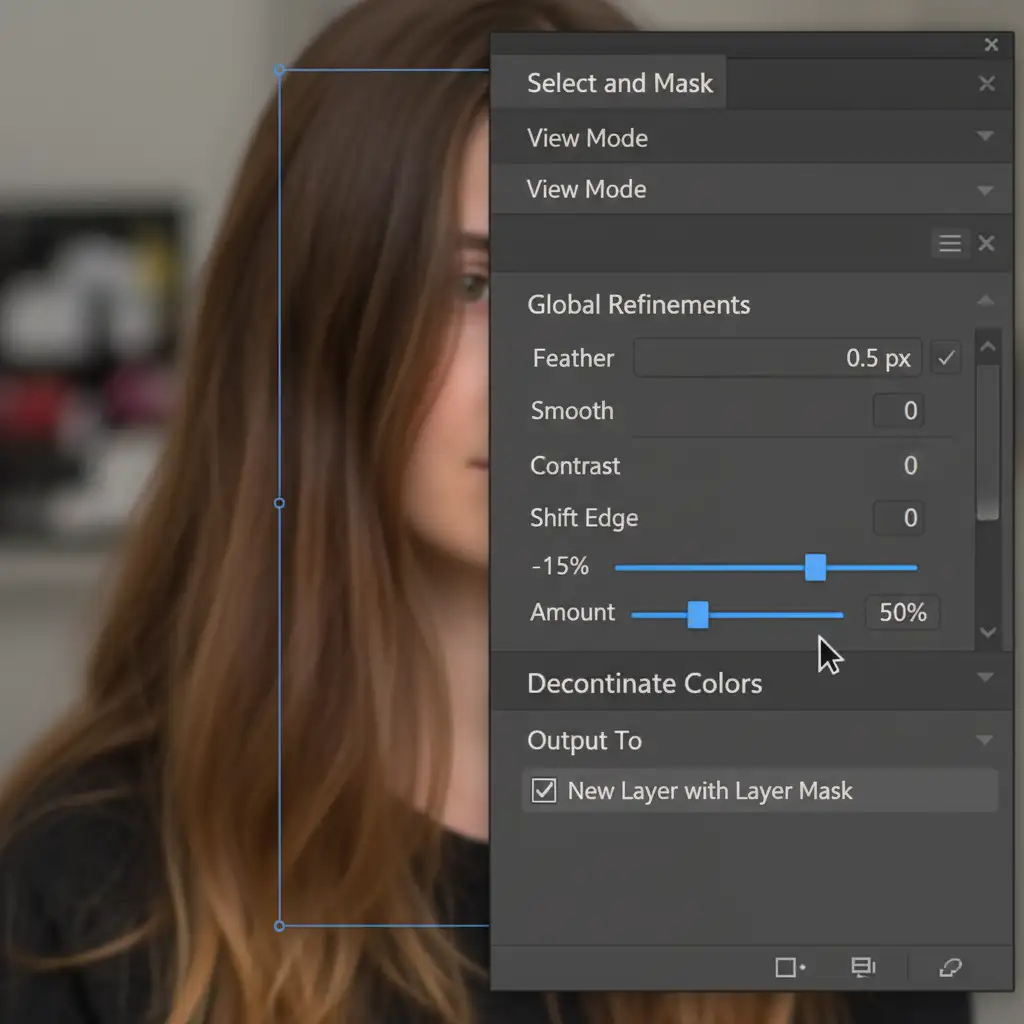
If the AI did a decent job but left a slight halo or jagged edge, you can often rescue the cutout using Photoshop’s dedicated masking workspace. This method is ideal for simple bands and solid pendants.
- Target the artifacted layer and open the Select and mask workspace.
- Apply a 0.5px Feather to slightly soften the jagged, aliased edges left by the AI.
- Adjust the Edge shift negatively (between -10% to -20%). This “chokes” the mask, pulling the selection inward to hide the glowing halo.
- Check the Decontaminate colors box. This forces Photoshop to replace edge pixels containing background spill with colors sampled from the jewelry itself.
Method B: The Hybrid AI and Pen Tool Approach
For intricate pieces-like diamond prongs, complex chain links, or highly reflective curves-AI will almost always clip vital details. The most reliable industry standard is a hybrid approach.
Let the AI remove the bulk of the background, but step in manually to fix the failures.
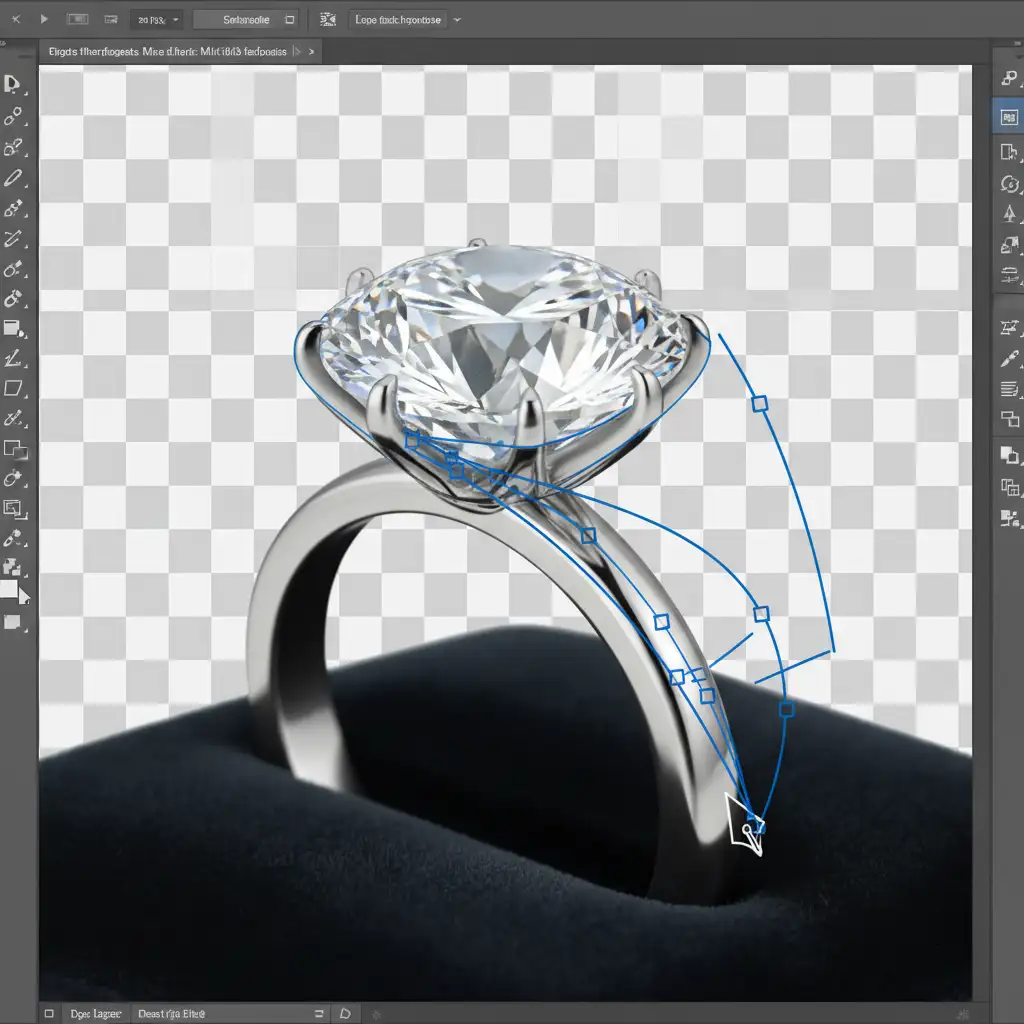
- Apply your automated background removal to create a base Layer Mask.
- Select the Pen Tool (P).
- Manually draw precise bezier curves around the failed areas. The Pen Tool is the only way to guarantee perfectly smooth, mathematically calculated curves on metal bands.
- Convert your completed path into a selection (Right-click > Make Selection > 0px Feather).
- Paint with white on the Layer Mask to restore clipped prongs, or paint with black to remove stubborn background artifacts trapped between chain links.
This creates a flawless clipping path that guarantees sharp, premium edges.
Method C: Technical Deep-Dive into Layer Matting and Channel Masking
When dealing with severe edge transparency on silver, or trying to extract a translucent gemstone without losing its internal refraction, basic masking tools fall short. You need to manipulate the pixel data directly.
Fixing Silver Edge Ghosting: If your silver ring has a semi-transparent white fringe that Select and Mask cannot fix, use the Defringe tool.
- Apply your Layer Mask so the background is permanently removed (or work on a copy).
- Navigate to Layer > Matting > Defringe.
- Set the pixel width to 1 or 2 pixels. This command forces Photoshop to identify semi-transparent edge pixels and replace their color values with the solid pixels immediately adjacent to them, effectively stripping out the edge halos.
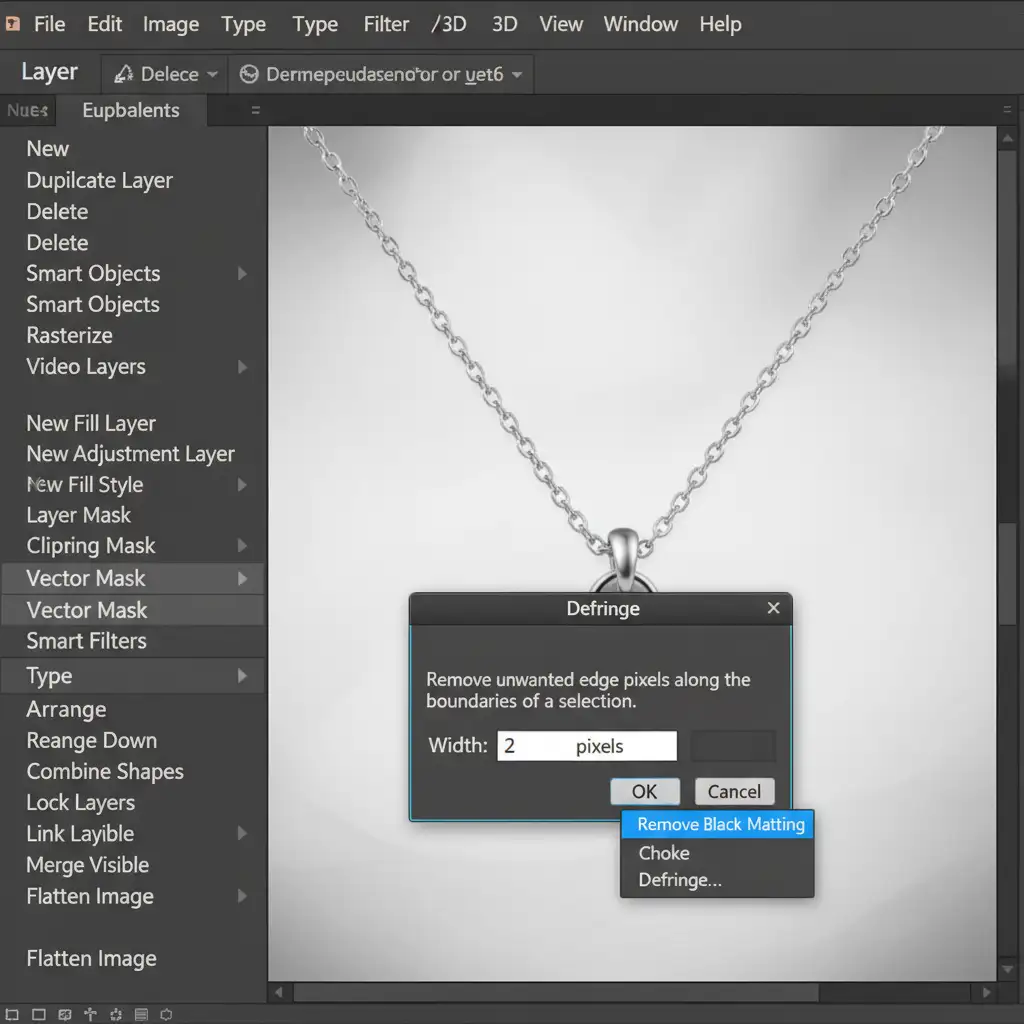
Fixing Transparent Gems: To perfectly separate a gemstone’s internal refraction from the background, utilize alpha channel masking.
- Open the Channels panel and duplicate the Blue channel (which typically holds the highest contrast for jewelry).
- Use Levels (Ctrl/Cmd + L) to heavily crush the blacks and whites on this duplicated channel.
- Ctrl-click (or Cmd-click) the channel thumbnail to load it as a precise luminance selection.
- Apply this selection as a Layer Mask. This retains the glassy, translucent properties of the gem while dropping out the background entirely.
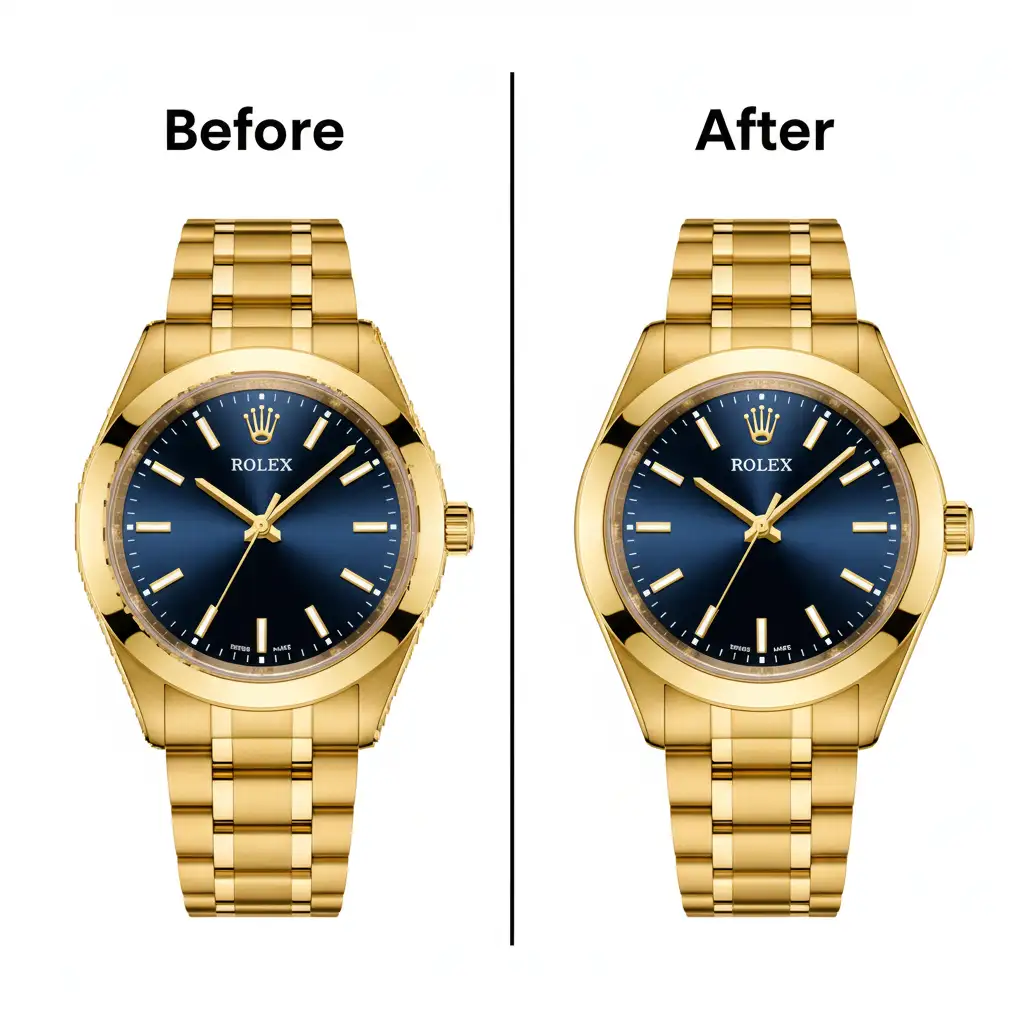
The Final Polish: Before and After
By combining automated AI for bulk work with manual clipping paths, Select and Mask refinements, and advanced layer matting, you can rescue any jewelry photo from algorithmic failure. The difference between an AI-only cutout and a hand-refined mask is the difference between an amateur listing and a high-end luxury catalog.
Stop Fighting AI-Let the Experts at Image Work India Handle It
Fixing AI background removal artifacts on jewelry photos is tedious, highly technical work. If you are processing dozens or hundreds of SKUs for an e-commerce catalog, spending 10 minutes per image refining bezier curves and tweaking alpha channels destroys your profit margins and turnaround times.
Don’t let AI ruin your high-end jewelry imagery. Outsource your post-production to Image Work India and Cloud Retouch. Our expert retouchers combine pixel-perfect manual clipping paths with advanced channel masking to guarantee flawless, artifact-free product catalogs. We handle the specular highlights, complex chains, and transparent gems so you can focus on growing your business.
Contact us today to get perfectly isolated, premium jewelry photos delivered on time, every time.



