
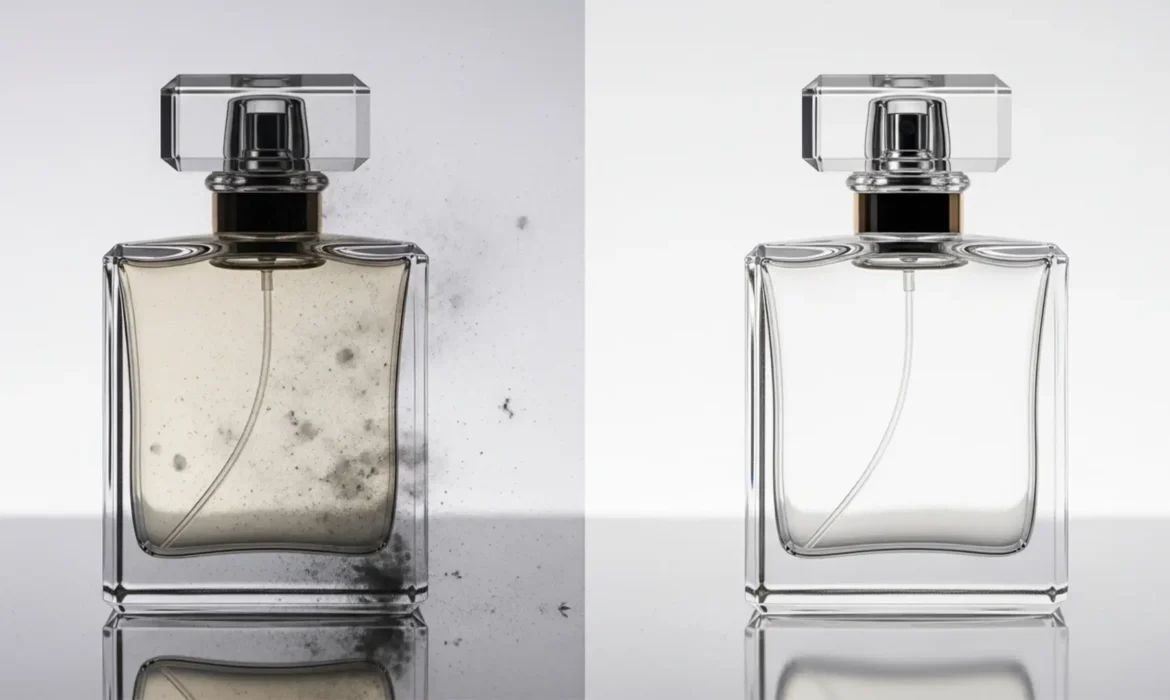
You just used Photoshop’s Generative Fill to expand the background behind a high-end glass perfume bottle, expecting an instant fix. Instead, you’re staring at a warped, muddy mess. While AI tools in Photoshop v25.0 and newer are incredible for solid objects, they consistently fail at calculating the refractive index of transparent surfaces. The result? Unnatural gray smudges, opaque patches, and ruined specular highlights that instantly cheapen your ecommerce catalog.
If you are struggling to clean up AI artifacts on glass products, you aren’t alone. AI simply cannot guess what happens to light when it bends through curved glass. Here is exactly how to override these AI hallucinations and restore pristine transparency to your product photos.
Why Photoshop AI Fails at Transparent Objects
When you use automated tools or Generative Fill on transparent ecommerce products, the algorithm tries to guess what belongs behind the object. However, it fails to account for optical distortion. Glass doesn’t just show what is behind it; it bends light, reflects its environment, and creates sharp, high-contrast edges.
Because the AI lacks true spatial awareness, it generates Generative Fill artifacts—often manifesting as jagged edges, missing reflections, or a “painted” look that destroys the illusion of transparency. To fix this, retouchers must rely on manual, high-end techniques.
How to Clean Up AI Artifacts on Glass Products
Depending on the severity of the AI errors, you can use one of three methods to salvage your product images.
Method 1: The Quick Fix for Minor Edge Warping
If the AI only generated a few isolated color smudges or minor edge warping, you don’t need to rebuild the entire bottle. You can patch the localized errors using traditional cloning techniques.
- Select the Clone Stamp Tool.
- Change the blend mode in the top toolbar to Lighten (to restore bright reflections) or Darken (to restore shadows without affecting the highlights).
- Sample a clean area of the glass and carefully paint over the AI-generated smudges.
- Use the Remove Tool for small, isolated jagged pixels along the rim of the glass.
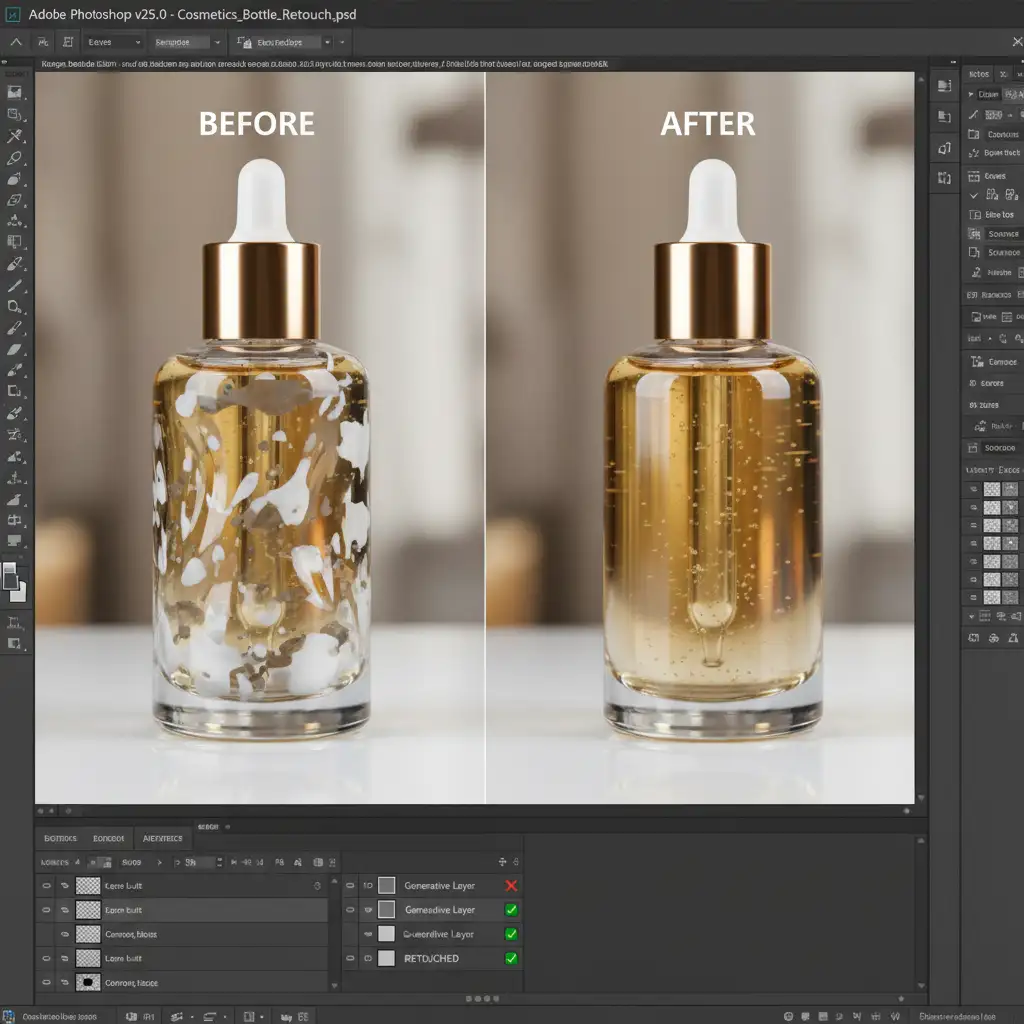
Method 2: The Pro Workaround Using Frequency Separation
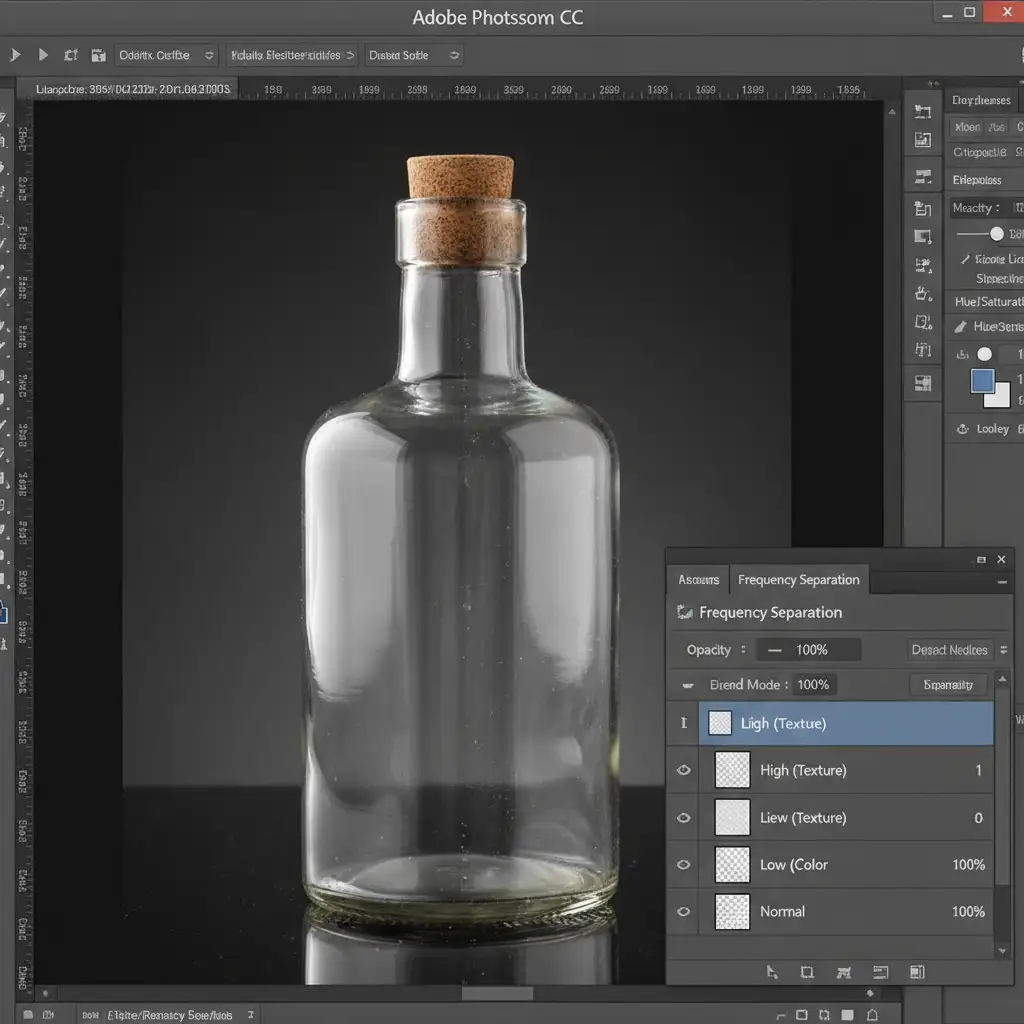
When AI muddies the colors behind the glass but leaves the surface scratches and reflections intact, Frequency Separation is your best friend. This technique divides your image into texture (High) and color (Low) layers.
- Run your standard Frequency Separation action to split the image into High (texture/reflections) and Low (color/background) layers.
- Select the Low layer.
- Use a soft brush to paint out the muddy, hallucinated AI background colors.
- Because you are only painting on the color layer, the actual glass reflections, specular highlights, and surface details on the High layer remain completely untouched.
Method 3: The Technical Deep-Dive (Rebuilding Transparency)
For complete AI failures where the glass is entirely ruined, you must rebuild the transparency from scratch. This is the gold standard for transparency compositing in high-end ecommerce.
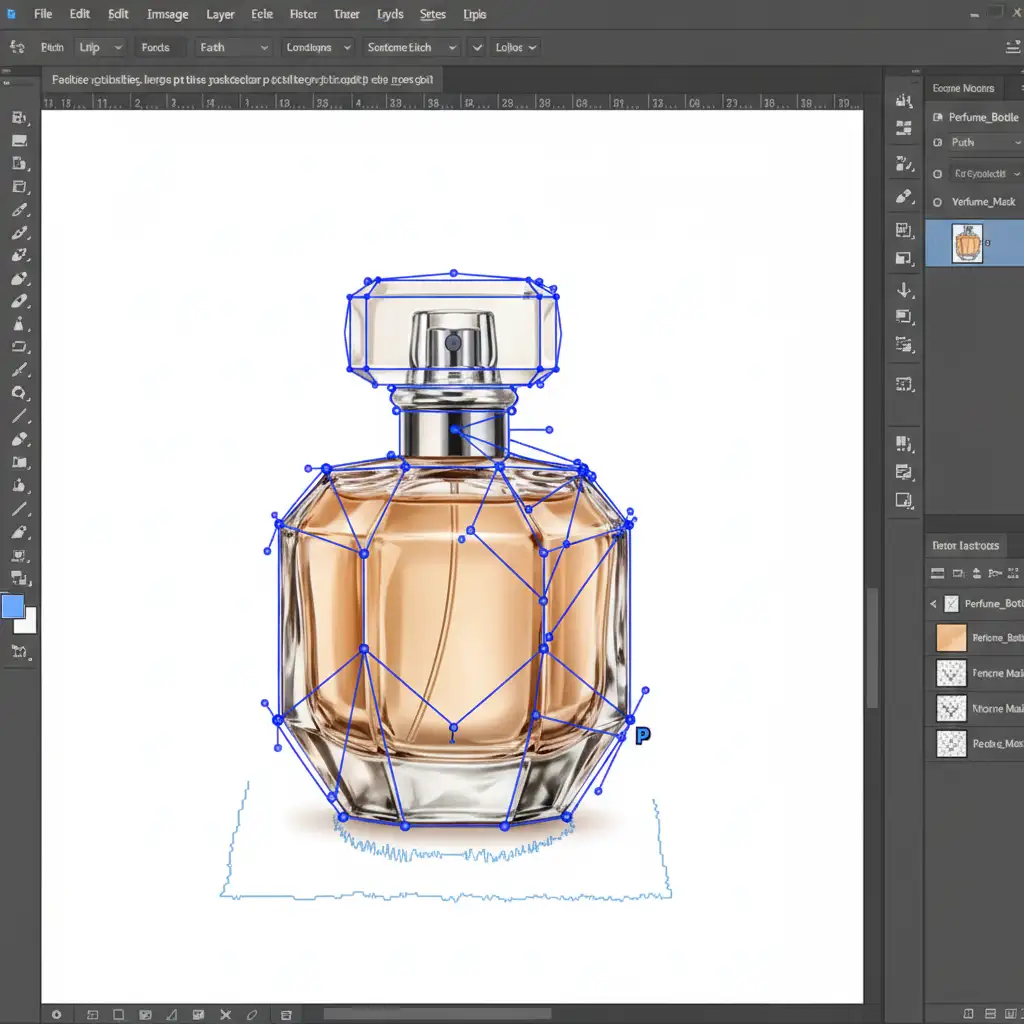
Step 1: Isolate the Product Never trust AI to select curved glass. Draw a precise clipping path around the glass using the Pen Tool. Convert this path into a Vector Mask to eliminate the jagged AI edges completely.
Step 2: Apply a Clean Plate Extract the glass and place it over a pristine, neutral studio background plate. At this stage, the glass will look flat because the AI destroyed the original lighting.
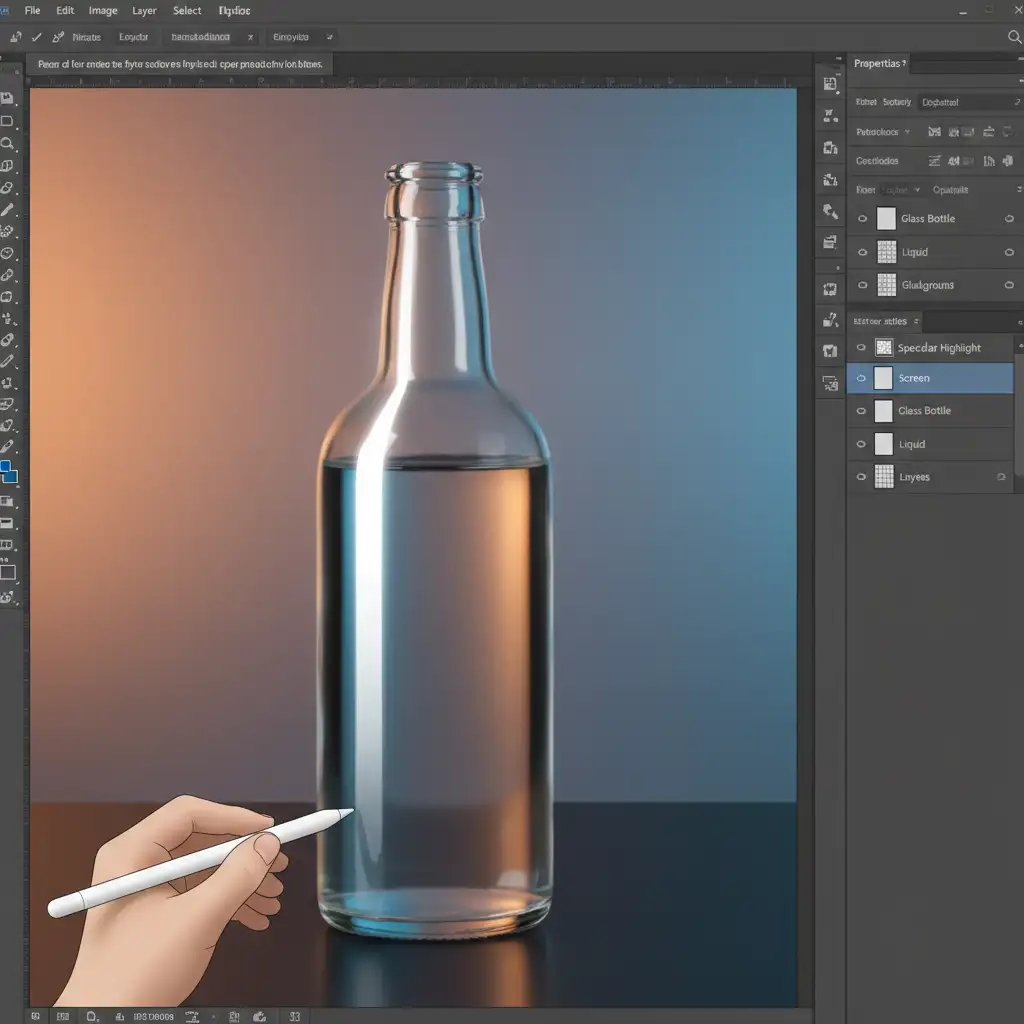
Step 3: Recreate Specular Highlights To bring the glass back to life, you must manually draw the reflections.
- Create a new blank layer above your product.
- Set the layer’s blend mode to Screen blend mode.
- Select the Gradient Tool and choose a linear gradient.
- Set the gradient color from solid white to transparent.
- Click and drag along the edge of the glass to recreate accurate, non-hallucinated specular highlights and edge lighting. Adjust the opacity until the reflection looks natural.
Scale Your Ecommerce Retouching with Image Work India
Knowing how to clean up AI artifacts on glass products is essential, but executing these manual techniques across thousands of catalog images is incredibly time-consuming. When Generative Fill fails, you need a reliable team of human experts to step in.
Stop letting AI ruin your high-end product catalog. Partner with Image Work India and Cloud Retouch for pixel-perfect, manual glass and transparent product retouching at scale. Our expert retouchers specialize in flawless clipping paths, Frequency Separation, and complex transparency compositing, ensuring your products look premium, accurate, and ready to convert.
Contact Image Work India today to get a free trial and see the difference manual precision makes for your ecommerce imagery.



