
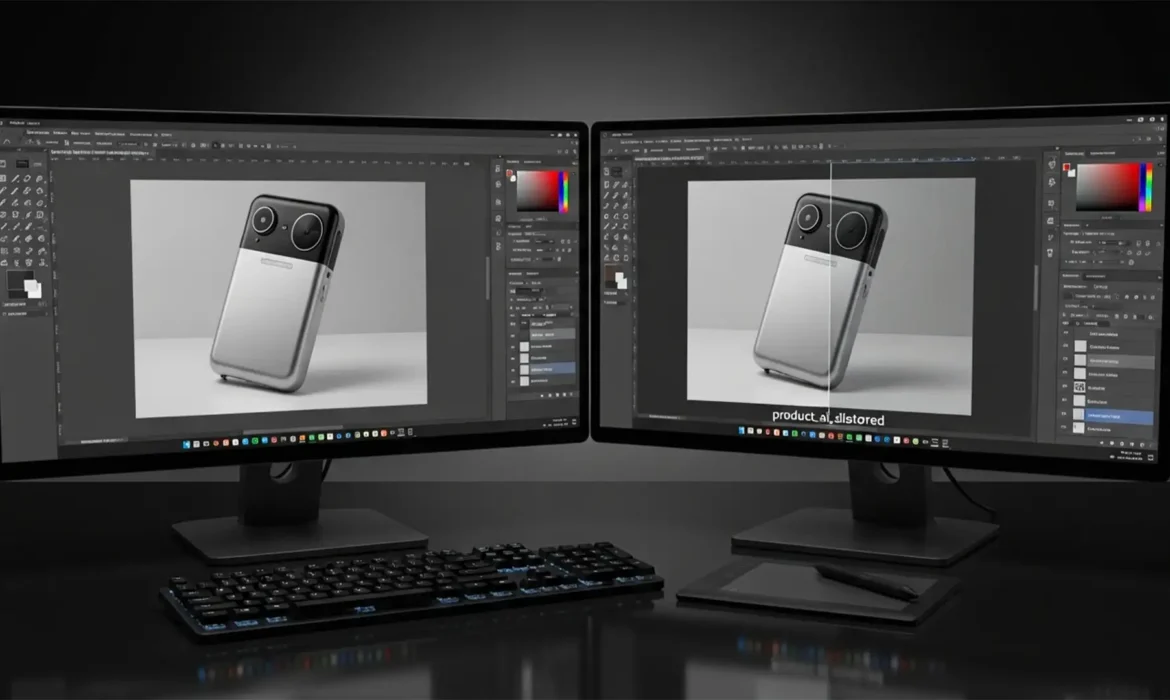
You upgraded to Photoshop 2025, excited to use the new AI tools to expand backgrounds on your ecommerce shots. But instead of a seamless edit, your product’s edges are blurred, the textures are mushy, and the proportions look slightly off. This “edge hallucination” ruins product accuracy, leading to customer returns and poor listing performance.
If you are struggling with this issue, you aren’t alone. The updated Adobe Firefly Image 3 model has a cloud processing quirk that destroys fine details. Here is the definitive Photoshop 2025 Generative Fill product distortion fix to protect your original pixels and maintain professional standards.
Why is Photoshop 2025 Distorting Your Product Photos?
The core problem lies in how Photoshop handles server-side rendering for its newest AI features. When you use Generative Fill or Generative Expand near a primary subject, the Adobe Firefly Image 3 model attempts to blend the new background with your existing product.
However, to save bandwidth and processing power, the AI aggressively downscales the selection area before sending it to the cloud. The server processes the prompt, generates a lower-resolution patch, and sends it back to your local machine, where Photoshop upscales it and applies edge blending.
For high-contrast edges and fine product textures, this downscale-upscale loop is disastrous. It causes the AI to misinterpret product boundaries, resulting in micro-proportion changes and texture blurring that ruin ecommerce accuracy.
3 Ways to Fix Photoshop 2025 Generative Fill Product Distortion
To achieve pixel-perfect results, you must force Photoshop to respect your original product boundaries. Here are three proven methods, ranging from quick workflow adjustments to professional non-destructive editing techniques.
Method 1: The Quick Fix (Reference Images)
If you need a fast solution for a simple background extension, you can anchor the AI’s understanding of the product using the new taskbar features.
- Make your selection around the product.
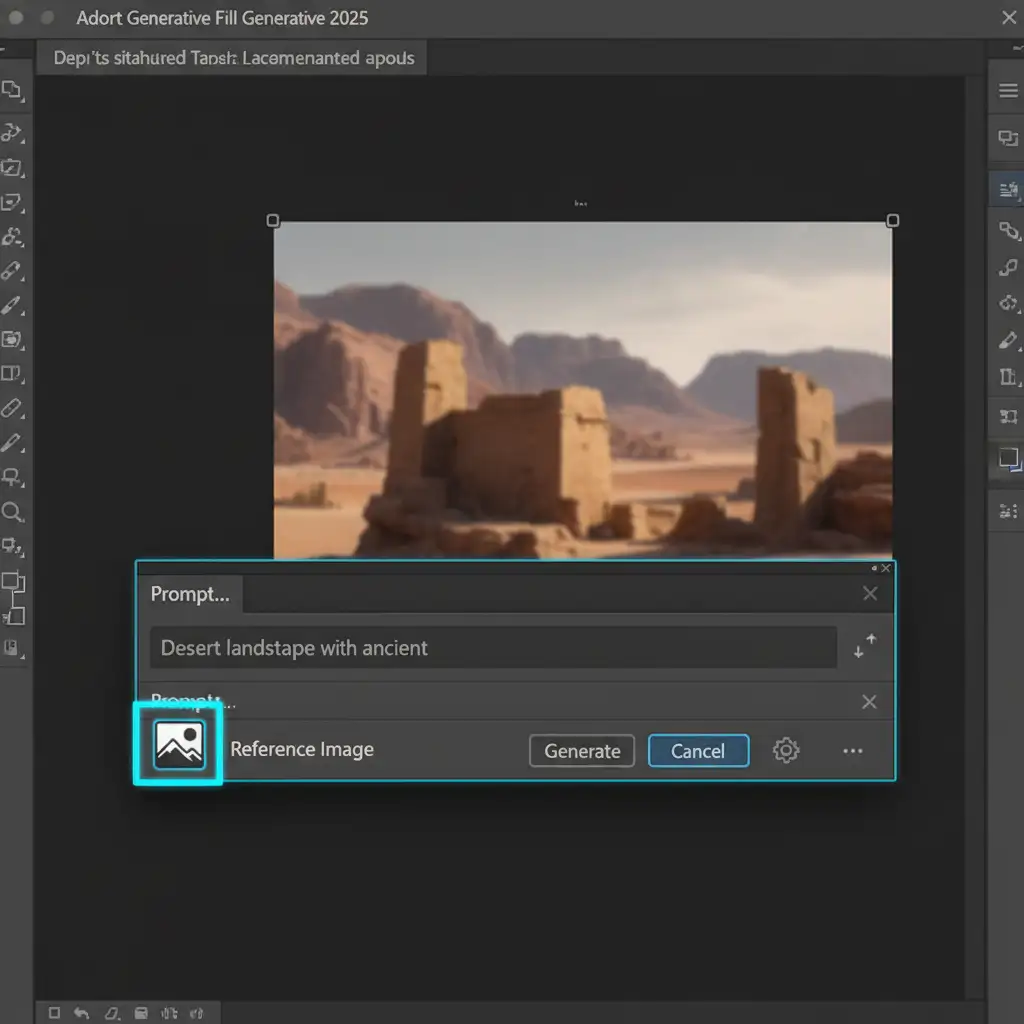
- In the Generative Fill taskbar, click the Reference Image icon.
- Upload a crisp, high-resolution version of your product.
- Apply strict prompt engineering. Use negative prompts (if applicable) or highly specific descriptive text to tell the AI exactly what the product is, preventing it from guessing the textures.
Method 2: The Pro Workaround (Smart Objects & Clipping Paths)
This is the industry-standard method for ecommerce image editing. It completely isolates the product from the AI’s destructive blending process.
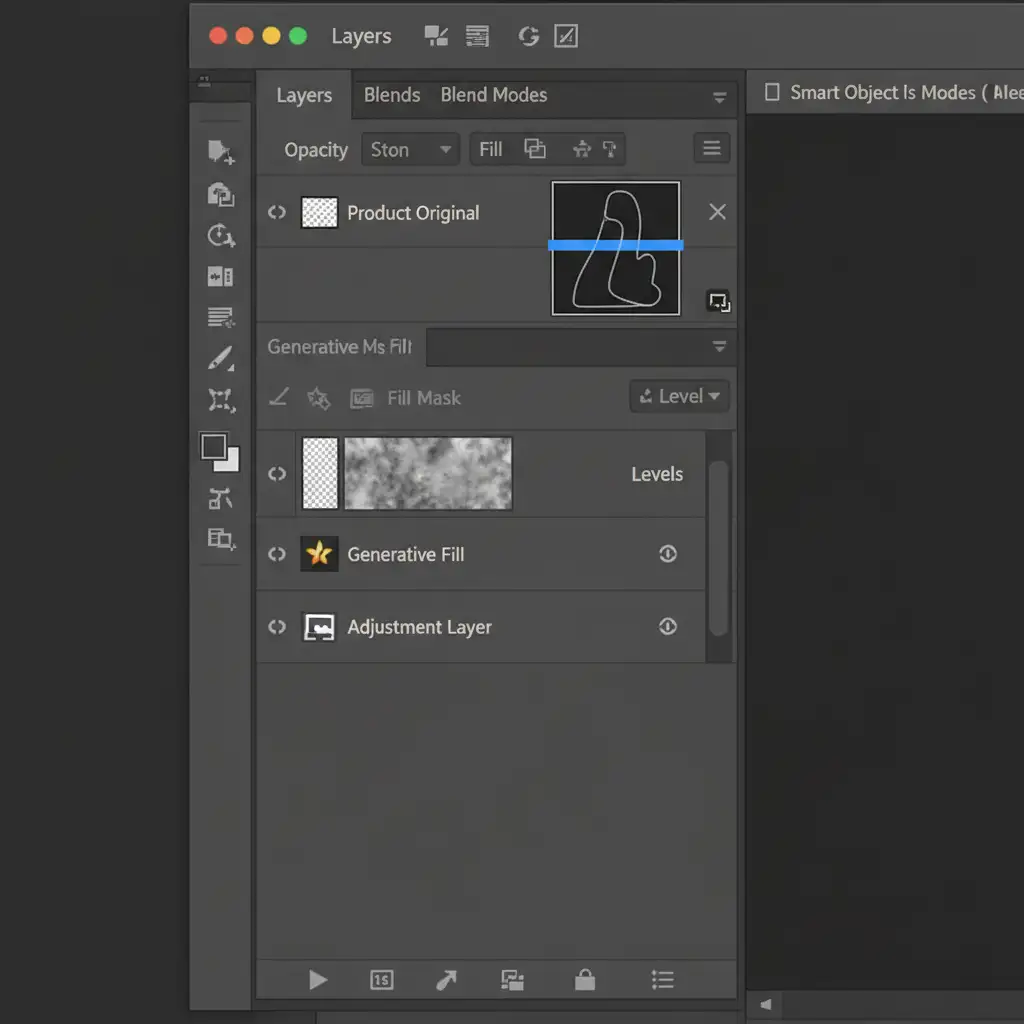
- Duplicate your original product layer.
- On the top layer, create a precise clipping path using the Pen Tool to perfectly outline your product.
- Convert this isolated layer into a Smart Object.
- Apply a Layer Mask to hide the original background.
- Select your bottom layer and run your Generative Fill or Generative Expand prompt.
- Because your masked Smart Object sits strictly above the Generative Fill layer, the original product pixels are 100% preserved, completely hiding any AI edge distortion underneath.
Method 3: The Technical Deep-Dive (Content-Aware Fill & Preferences)
Sometimes, you need to remove props or blemishes that touch the product directly, where layering won’t work. In these cases, you must bypass Generative Fill entirely.
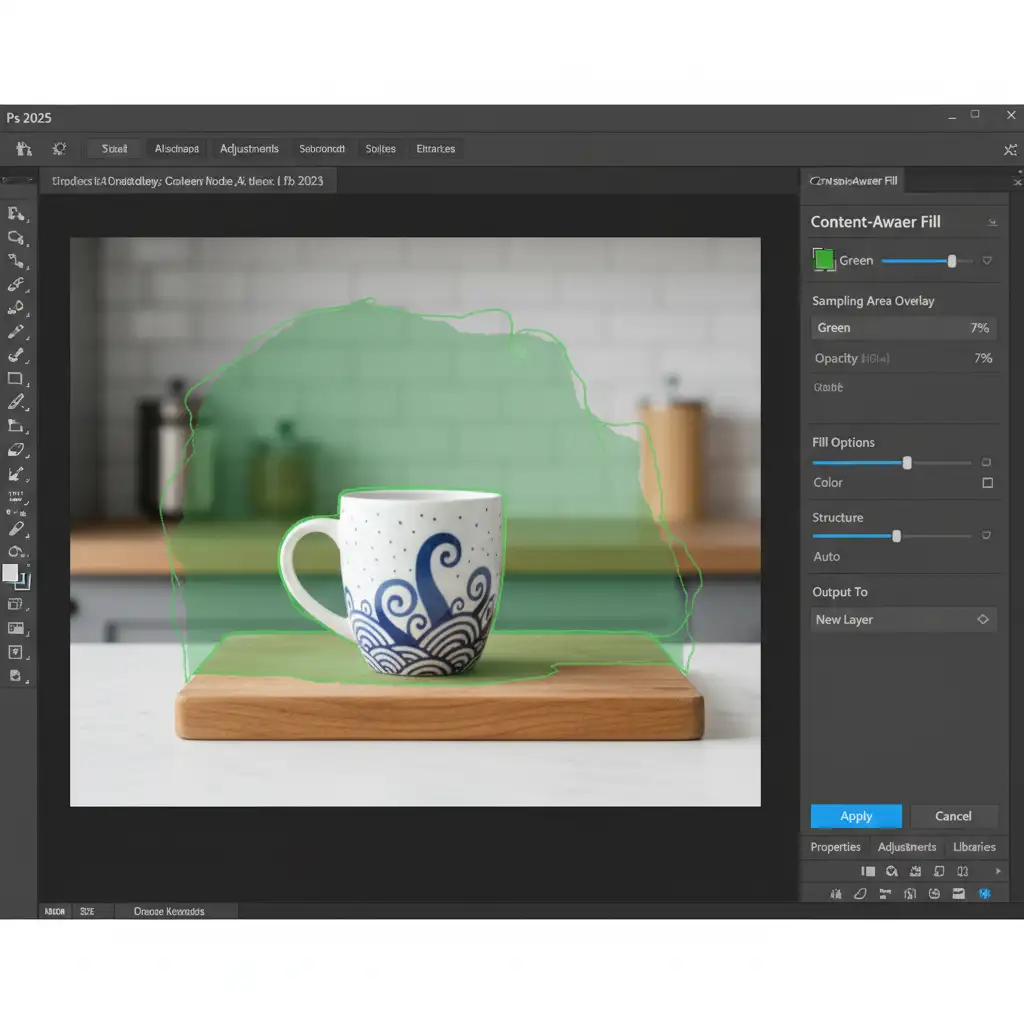
- Use Legacy Tools: Instead of Generative Fill, select the area and open the legacy Content-Aware Fill workspace (Edit > Content-Aware Fill).
- Use the custom sampling brush to paint exactly which pixels Photoshop is allowed to copy. This prevents the AI from sampling and blurring your product’s edges.
- Clear the Cache: If Photoshop continues to render glitchy edges, clear your Photoshop Cloud Cache.
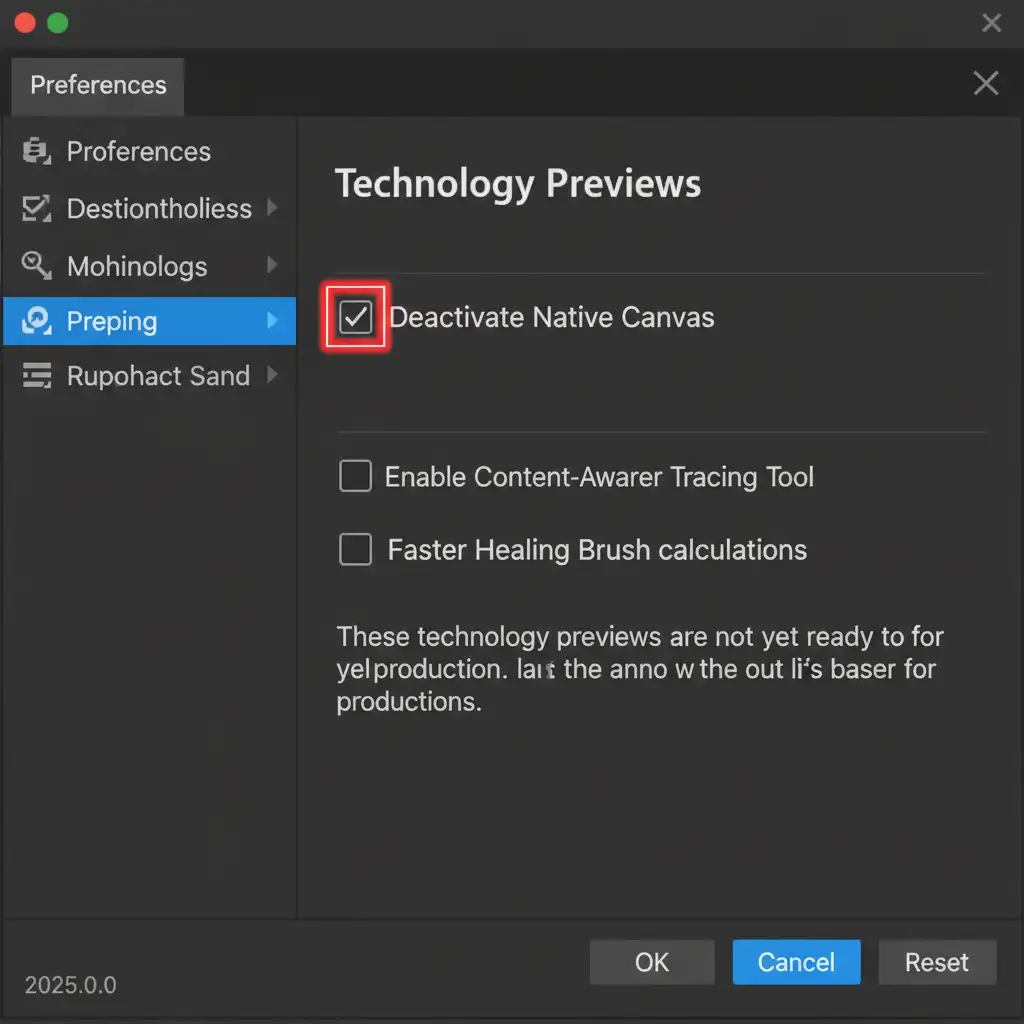
- Tweak Preferences: Go to Preferences > Technology Previews and check Deactivate Native Canvas. Restart Photoshop. This forces the software to use an older, more stable rendering engine that prevents visual glitches during high-resolution masking.
When AI Fails: The Ultimate Ecommerce Solution
Generative AI is an incredible tool for brainstorming concepts and creating mood boards. But when it comes to ecommerce, your customers expect pixel-perfect accuracy. A blurred edge or a slightly warped texture can be the difference between a sale and a return.
Fixing AI errors manually takes time—time you could spend growing your business.
If you want flawless product images without the headache of fighting server-side rendering bugs, let the experts handle it. Image Work India and Cloud Retouch specialize in precise manual clipping paths, high-end non-destructive editing, and professional retouching that AI simply cannot match.
Stop settling for distorted product photos. Contact Image Work India and Cloud Retouch today to get pixel-perfect, conversion-ready ecommerce images delivered fast.



