
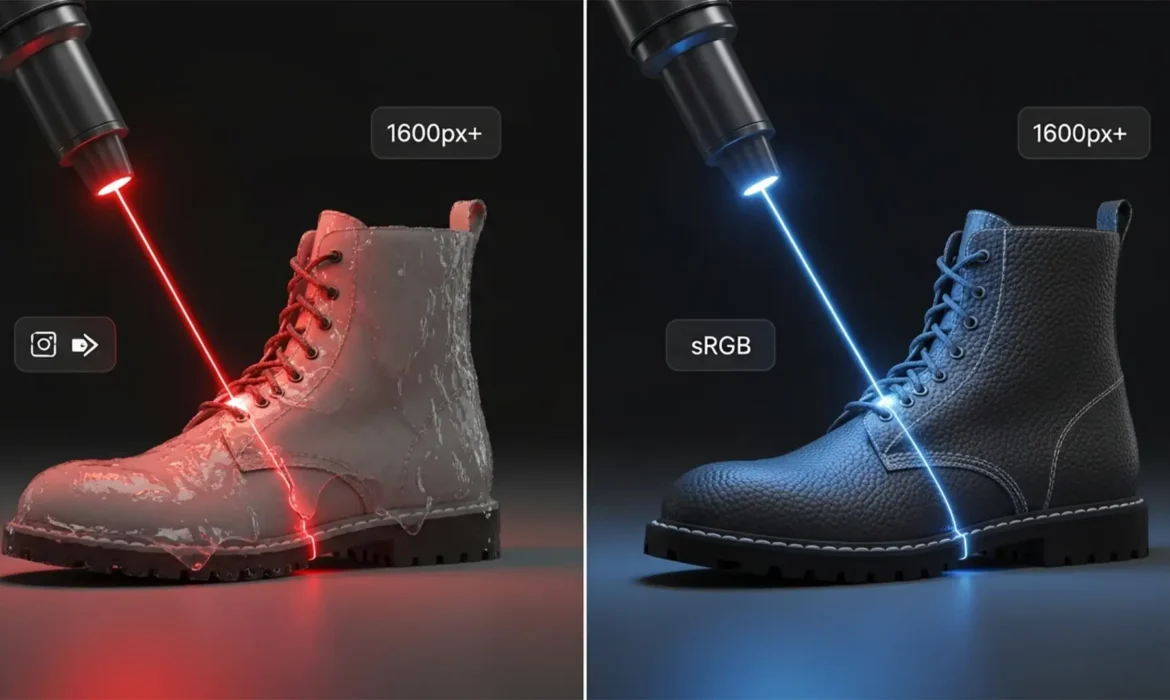
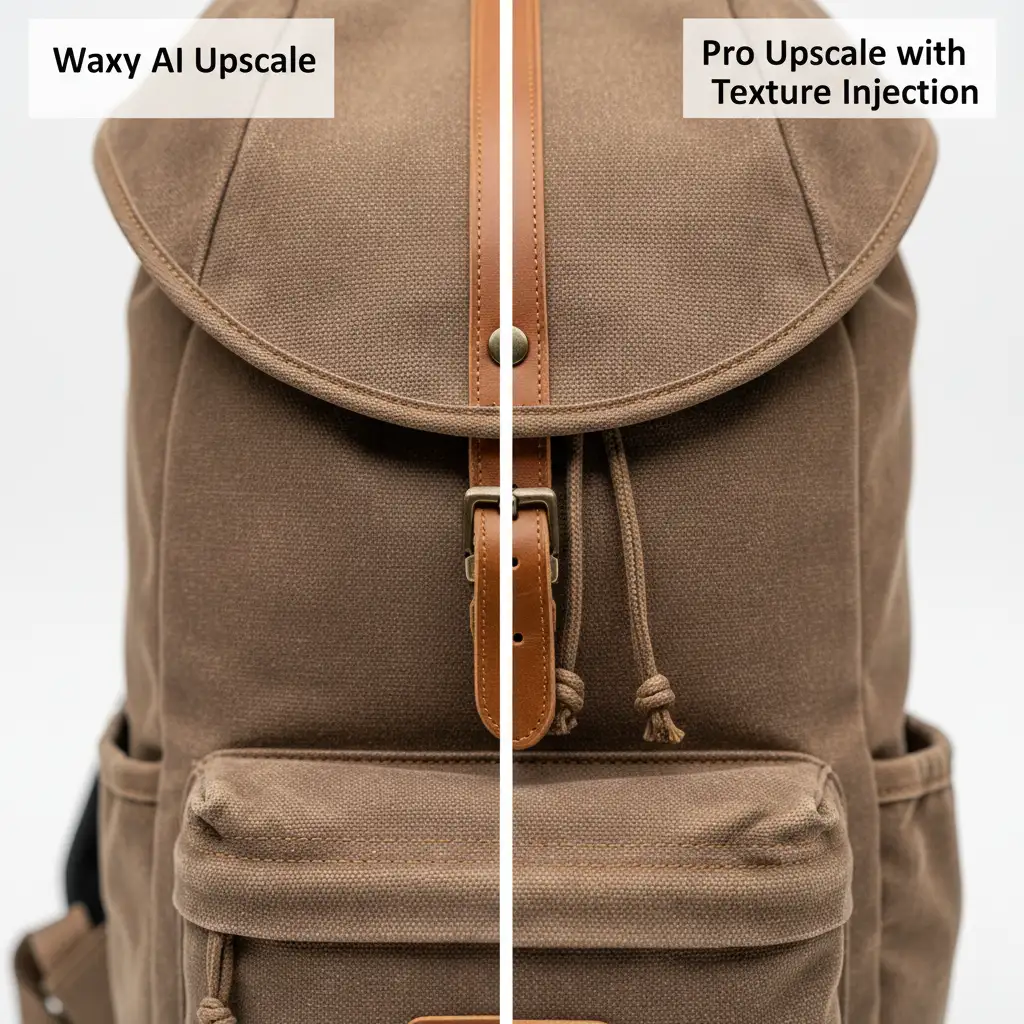
You have a catalog of low-res product photos, and you need to meet Amazon’s strict 2024 zoom requirements. So, you run them through a basic AI upscaler. The resolution increases, but suddenly your premium fabric looks like melted plastic, and metallic grains turn into smooth smudges.
This is the dreaded “waxy” AI effect. When upscaling low-res product photos for Amazon 2024 requirements, standard AI tools and older image interpolation algorithms aggressively denoise your images. They destroy the natural textures that convince customers to click “Add to Cart.”
If you want to pass Amazon’s image standards without sacrificing photorealistic quality, you need to bypass default AI smoothing. Here is exactly how to upscale your product images like a high-end retouching studio.
Understanding Amazon’s 2024 Image Requirements
Before diving into Photoshop, you need to know exactly what target you are aiming for. Amazon’s updated guidelines dictate specific technical parameters to ensure a seamless shopping experience:
- Resolution: A strict minimum of 1000 pixels on the longest side, though Amazon highly recommends 1600px to 3000px to trigger the high-quality zoom functionality.
- Color Space: Images must be saved with an sRGB color profile.
- File Size & Formatting: Files must be under 10MB, ideally utilizing 85% JPEG compression for the perfect balance of web speed and visual fidelity.
The Problem with Basic AI Upscaling
If you are using Adobe Photoshop v25.x or v26.x, your first instinct might be to use Neural Filters (specifically Super Zoom) or third-party AI upscalers. While powerful, these tools are trained to eliminate noise. When applied to e-commerce products, this aggressive denoising wipes out micro-textures.
The result is severe artifacting around edges and a fake, plastic look that ruins the perceived quality of your goods. To achieve near lossless scaling, we must use alternative Photoshop workflows that prioritize texture preservation.
3 Pro Methods for Upscaling Low-Res Product Photos
Here are three professional techniques to upscale your images without losing critical detail.
Method A: The Quick Fix (Preserve Details 2.0)
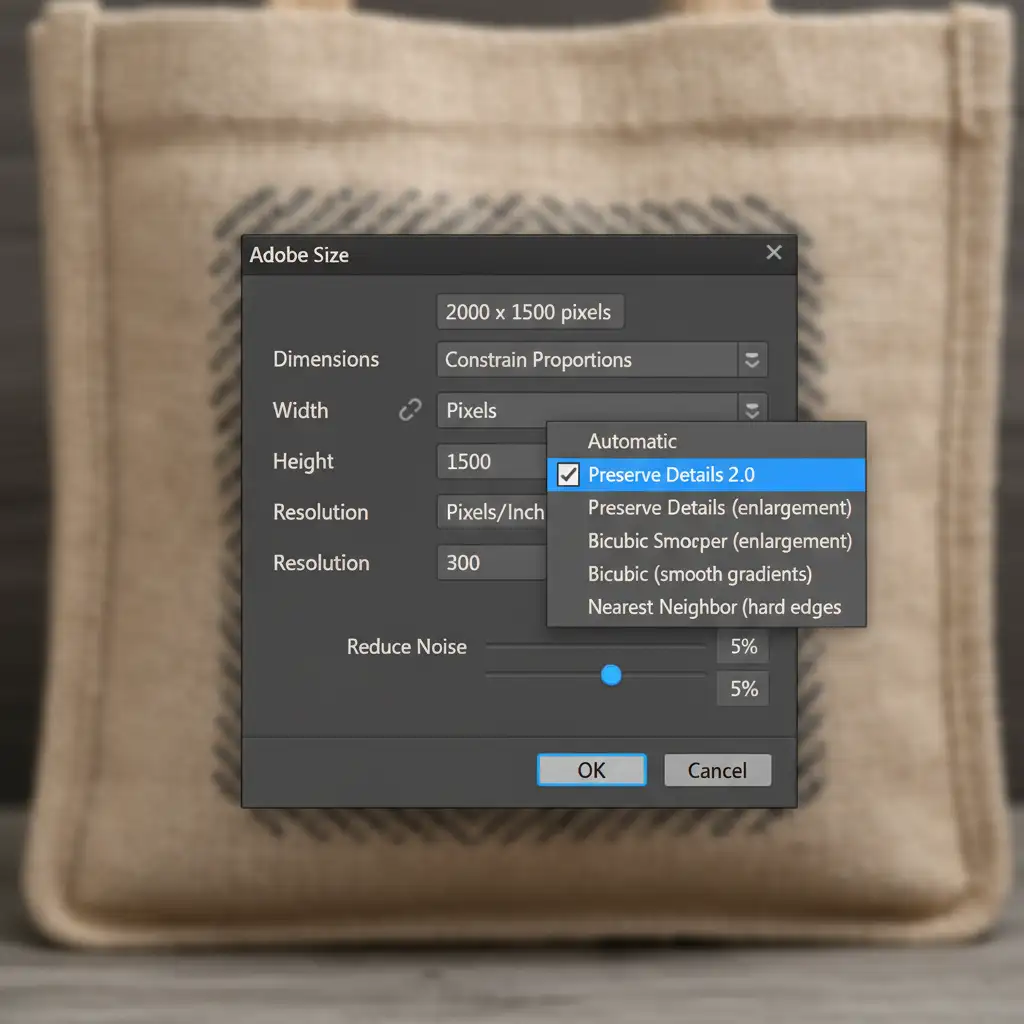
If you need a fast, reliable way to hit that 1600px mark, bypass the older Bicubic Smoother algorithm and use Photoshop’s built-in detail-preserving engine.
- Open your image and navigate to Image > Image Size.
- Check the Resample box.
- From the dropdown menu, select Preserve Details 2.0.
- Enter your target resolution (e.g., 2000px on the longest side).
- The Critical Step: Drag the Reduce Noise slider down to 0-10%. This stops Photoshop from smoothing out your product’s natural texture.
Method B: The Pro Workaround (Texture Injection)
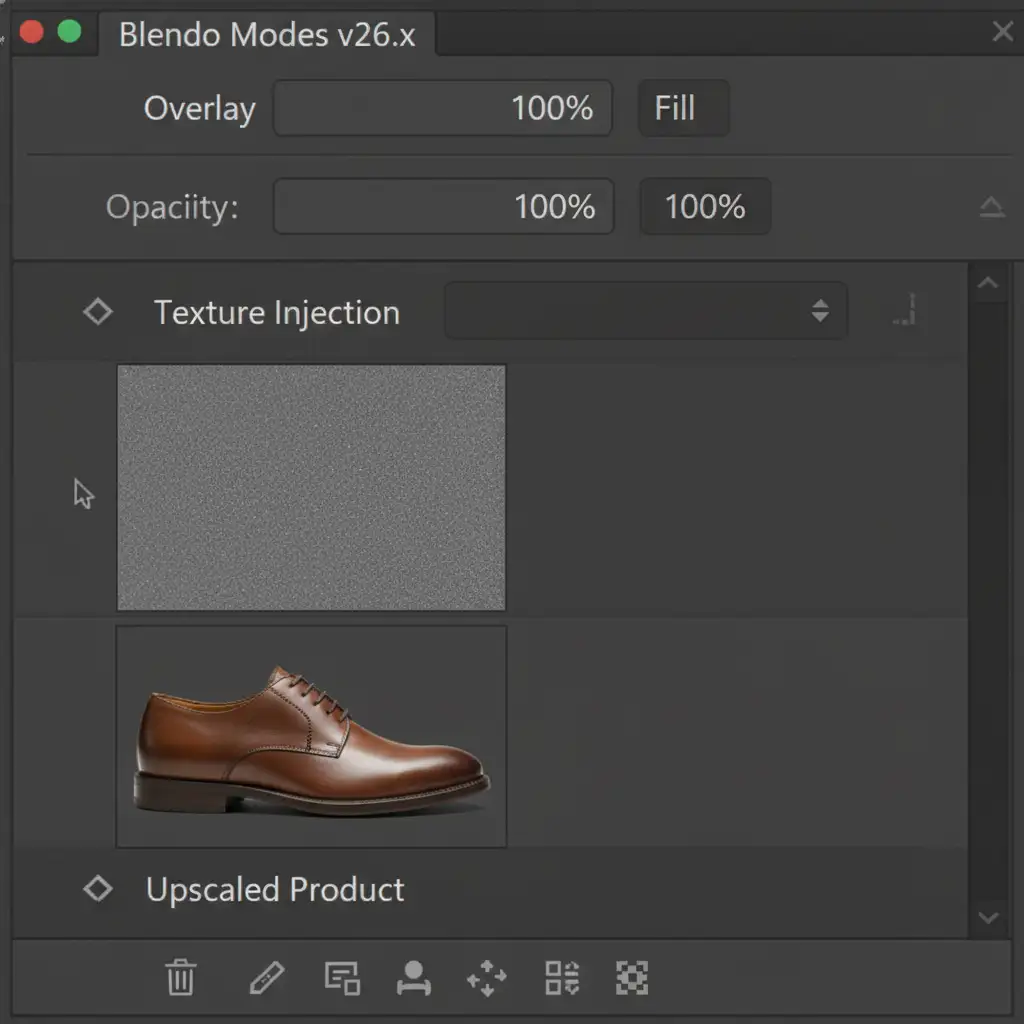
Sometimes you have to use an AI upscaler to get the base resolution, but you are left with a waxy result. You can fix this by introducing micro-texture that tricks the human eye into perceiving sharp material details.
- Upscale your image using your preferred method.
- In the Layers panel, create a new layer above your product image.
- Go to Edit > Fill and choose 50% Gray.
- Change this layer’s blending mode to Overlay.
- Navigate to Filter > Noise > Add Noise.
- Select Uniform and Monochromatic, and set the amount to a subtle 1-3%.
This “injected” grain replaces the texture the AI blurred away, restoring a natural, organic look to fabrics, leathers, and matte plastics.
Method C: The Technical Deep-Dive (Camera Raw & High Pass)
For the absolute highest quality upscaling—ideal for hero images and highly detailed products—combine Camera Raw’s Super Resolution with a High Pass filter.
- Right-click your background image layer and select Convert to Smart Object. Smart Objects protect your original pixel data.
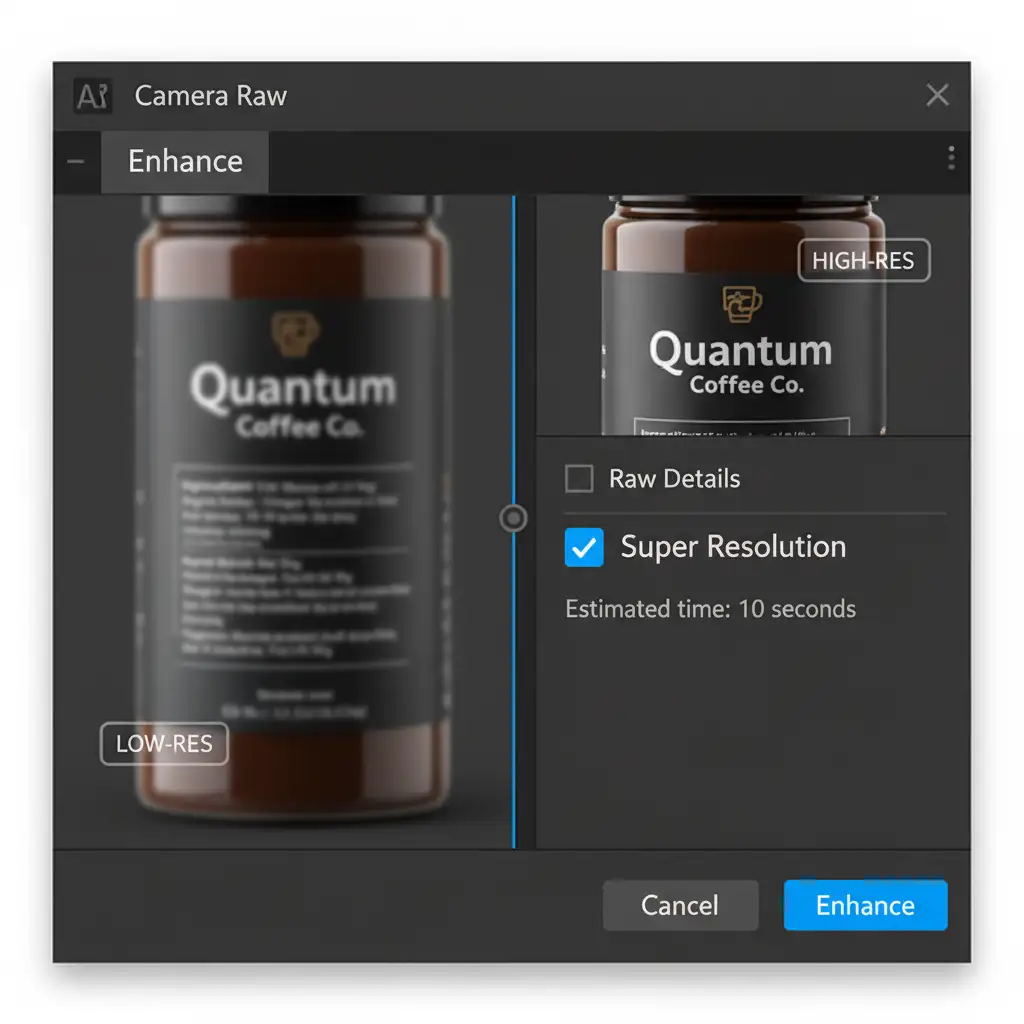
- Go to Filter > Camera Raw Filter.
- Right-click the image preview inside Camera Raw and select Enhance. Check the Super Resolution toggle to double the pixel count intelligently. Click OK.
- Back in your standard Photoshop workspace, duplicate this newly upscaled layer.
- Select the top duplicated layer and navigate to Filter > Other > High Pass. Set the Radius to 1.5px.
- Change this top layer’s blending mode to Linear Light blending.
This technique retains crisp, sharp edges on product labels, logos, and seams without introducing heavy halos or color artifacts.
Stop Losing Sales to Poor Image Quality
Upscaling low-res product photos for Amazon 2024 requirements isn’t just about changing numbers in an image size box; it’s about preserving the perceived value of your products. Waxy, over-smoothed images break customer trust and hurt your conversion rates.
If you have hundreds or thousands of SKUs, manually applying High Pass filters and Texture Injection to every single image is a massive drain on your time and resources.
Let the professionals handle it.
At Image Work India and Cloud Retouch, our expert retouchers specialize in high-volume, premium e-commerce image editing. We utilize advanced, proprietary upscaling workflows to ensure your entire product catalog meets Amazon’s strict 1600px+ zoom requirements perfectly-complete with accurate sRGB color profiles, flawless textures, and optimized file sizes.
Don’t let technical image rejections slow down your sales. Contact Image Work India and Cloud Retouch today, and let us prepare your visuals for e-commerce dominance.



