
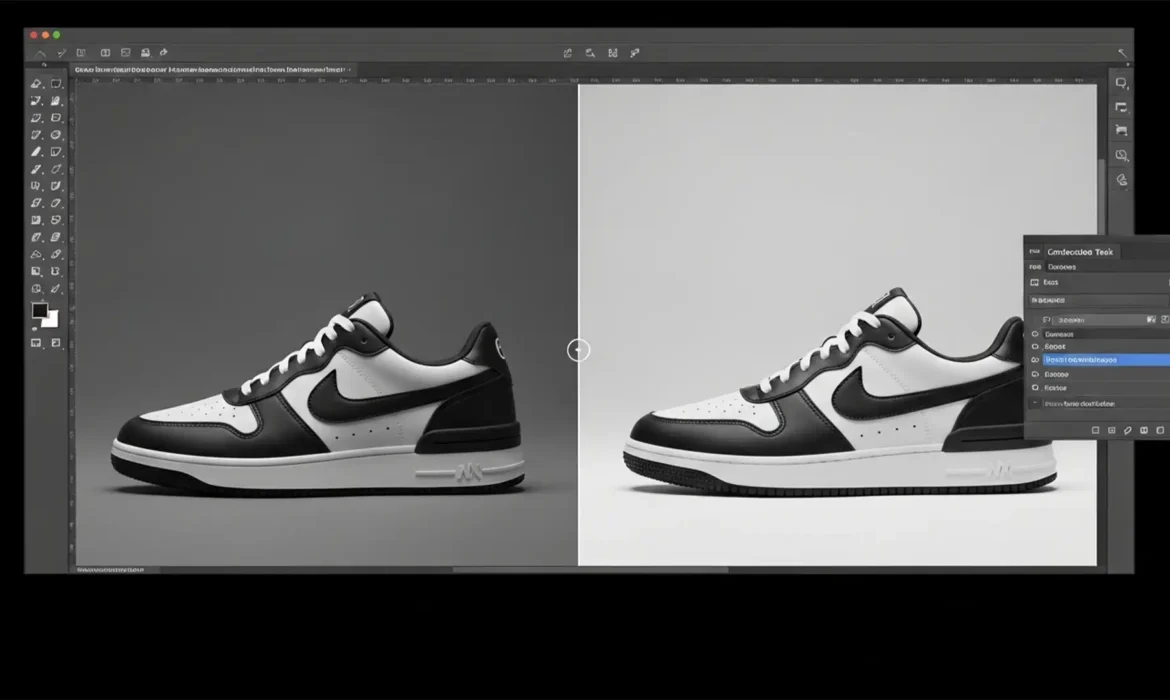
You’ve captured the perfect product shot, but there’s a distracting prop in the frame. You grab your selection tool, click “Generate,” and suddenly—your product’s edge melts.
If you’ve experienced Photoshop Generative Fill changing product dimensions, you know the frustration. In e-commerce, strict dimensional accuracy isn’t optional; it’s mandatory. Distorted silhouettes, warped edges, and altered shapes lead to customer complaints and increased return rates.
Today, we are breaking down exactly why Adobe’s AI hallucinates these structural changes and, more importantly, how to implement a professional, non-destructive editing workflow to maintain 100% pixel accuracy.
Why is Adobe Firefly Warping Your Products?
In Photoshop v25.0 and later, the Adobe Firefly-powered Generative Fill tool operates by analyzing the pixels inside and slightly outside your active selection. Its primary directive is to generate matching content that blends seamlessly.
However, when users select an area that intersects directly with a product’s edge—usually to remove a prop or extend a background—Firefly often hallucinates new edge pixels. The AI inherently prioritizes smooth visual blending over structural preservation. The result is edge distortion, warped dimensions, or completely altered silhouettes. For strict e-commerce compliance, this is completely unacceptable.
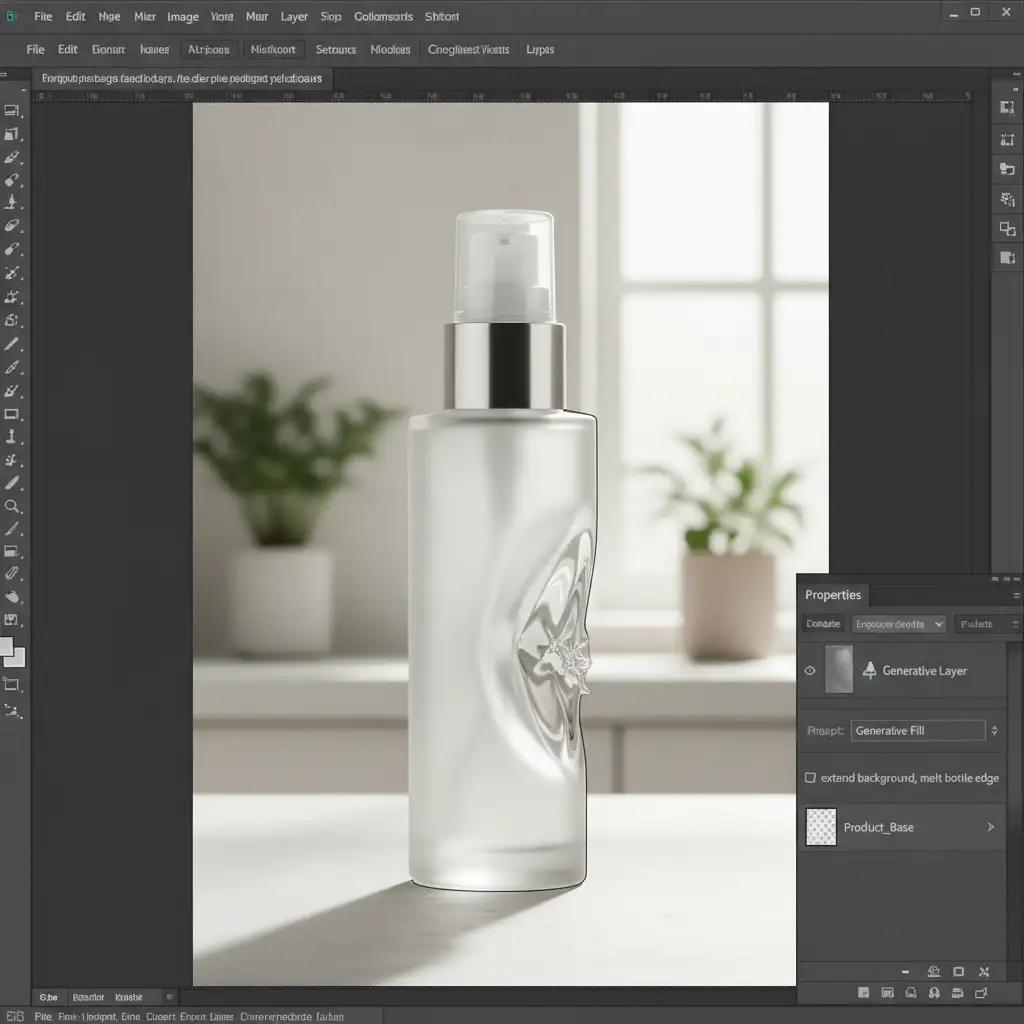
3 Professional Workflows to Stop Generative Fill Edge Distortion
To achieve true pixel accuracy, you must stop relying on loose lasso selections and start controlling the AI’s generation zone. Here are three proven methods to fix the warp.
Method 1: The Quick Fix – Strict Selection Contraction
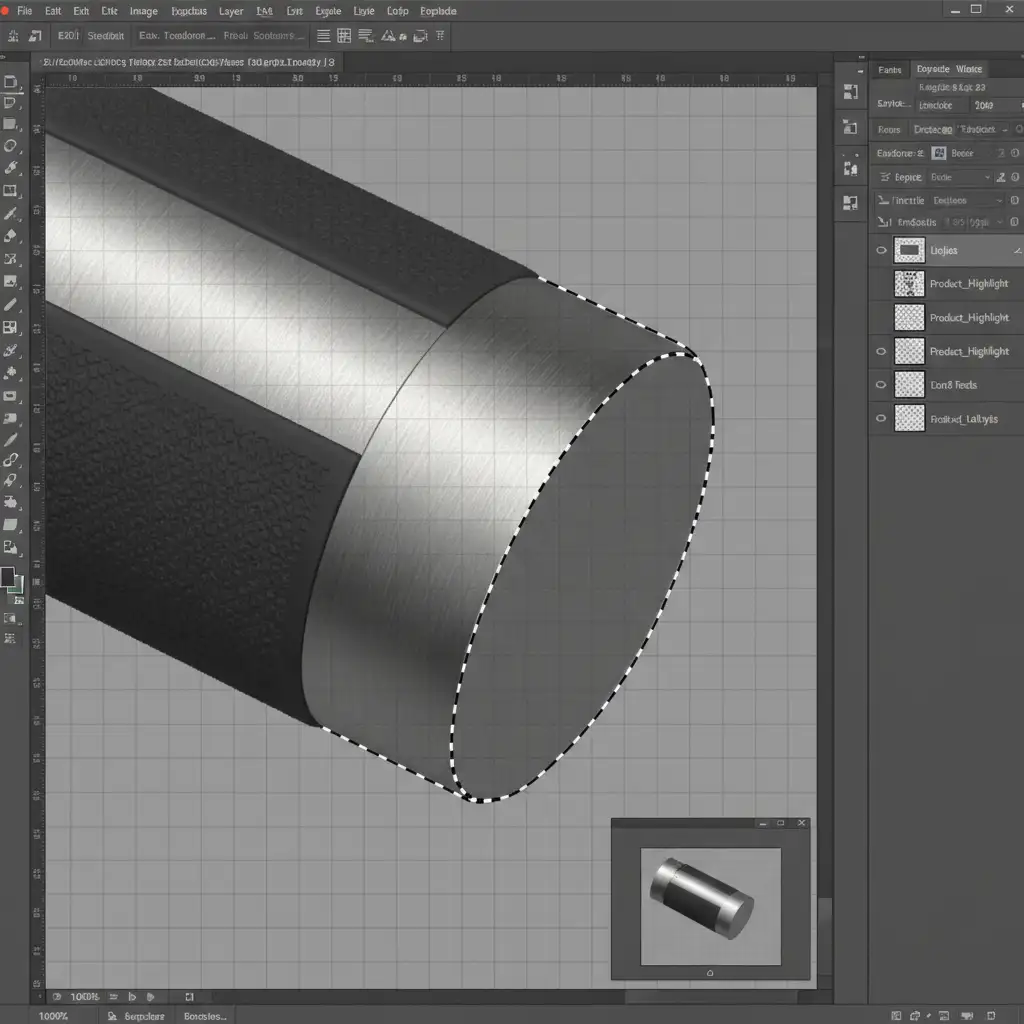
The most common mistake editors make is allowing the marching ants to touch or overlap the product edge. You need to build a buffer zone.
- Select your product using the Object Selection tool.
- Inverse the selection (Shift + Ctrl + I or Shift + Cmd + I) so the background is targeted.
- Navigate to Select > Modify > Contract.
- Contract the selection by 2 to 3 pixels.
This technique ensures the generation zone stops just short of your product. It prevents the AI from sampling your product’s edge pixels, drastically reducing the chance of distortion.
Method 2: The Pro Workaround – Protective Layer Masking
For complex e-commerce composites, relying on selection gaps isn’t enough. You need guaranteed structural preservation through non-destructive editing. This hybrid workflow isolates the product entirely from the AI generation zone.
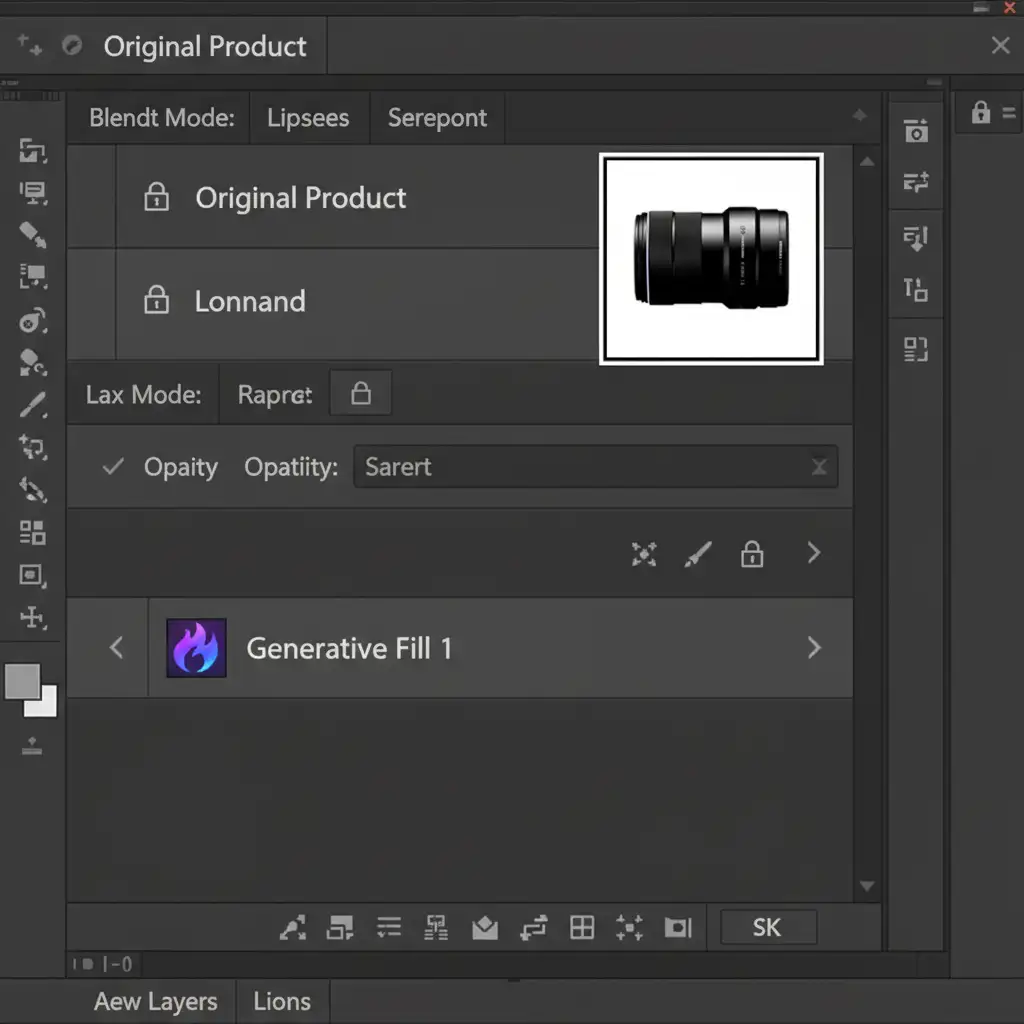
- Open your image and duplicate the original background layer. Convert the original to a Smart Object for safety.
- Move the duplicated layer to the top of your layer stack.
- Use the Select Subject tool on this top layer to create a highly precise Layer Mask.
- Select the layer below your newly masked product.
- Make your loose selection for prop removal or background extension, and apply Generative Fill.
Because your perfectly masked original product sits on top, it acts as an impenetrable shield. The AI handles the background blending on the layer below, while your product’s original dimensions remain 100% intact.
Method 3: The Technical Deep-Dive – Advanced Prompting and Remove Tool
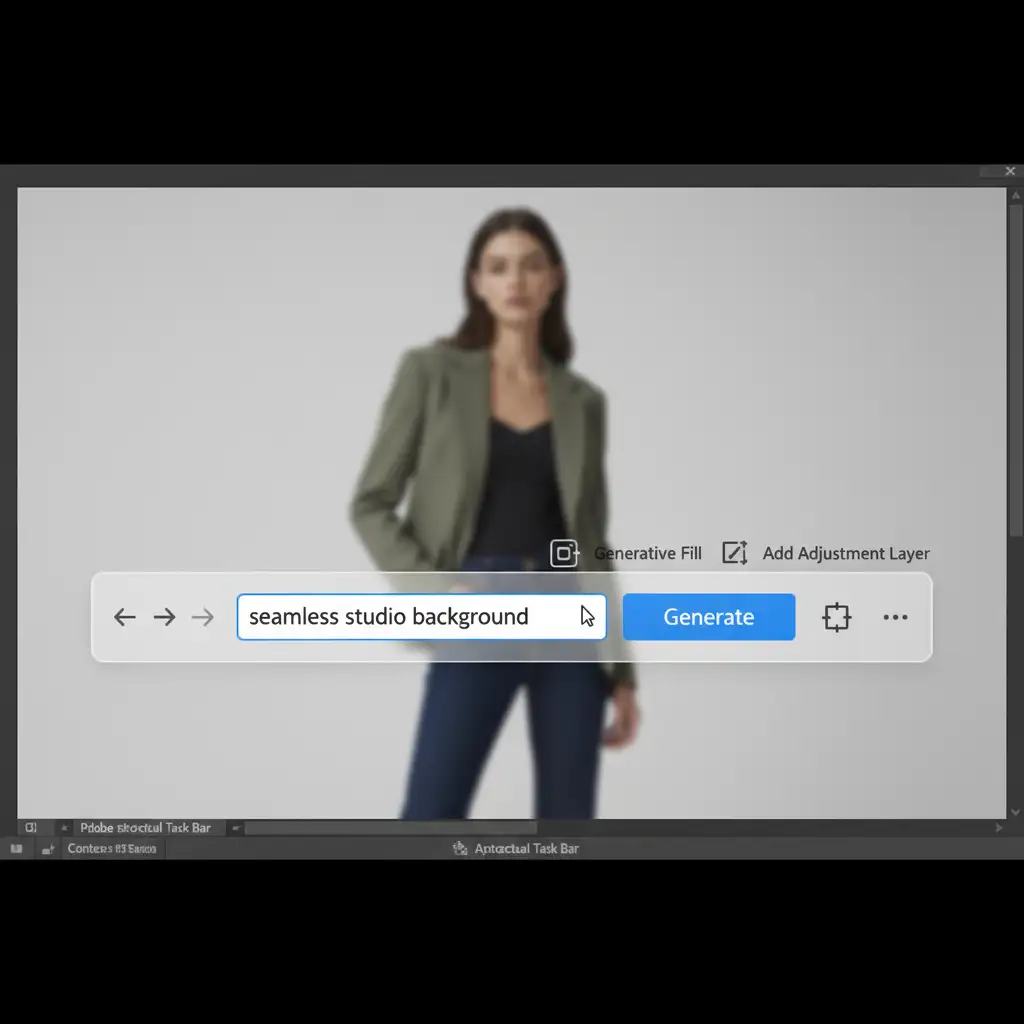
Leaving the prompt box empty tells Adobe Firefly to guess what you want, which often leads to structural hallucinations. Take control via the Contextual Task Bar.
Instead of a blank prompt, use specific structural commands like “seamless studio background” or “solid white backdrop.” This limits the AI’s creative freedom and forces it to focus on background generation rather than object creation.
If minor edge halos occur due to selection feathering, do not use Generative Fill to fix them. Instead, switch to the Remove Tool. Set it to “Sample All Layers” and manually paint over the halos. The Remove Tool is optimized for localized cleanup without triggering full AI pixel regeneration.
Scale Your E-Commerce Editing with Image Work India & Cloud Retouch
Mastering these technical workarounds ensures your product dimensions stay true to life, but executing them across hundreds or thousands of SKUs is incredibly time-consuming. E-commerce standards require exact product dimensions, and fighting with AI artifacts slows down your entire post-production pipeline.
Struggling with AI artifacts ruining your product shots? You don’t have to fix every warped edge yourself.
Outsource your high-volume editing to Image Work India and Cloud Retouch. Our expert retouchers utilize advanced, non-destructive workflows to deliver pixel-perfect, dimensionally accurate e-commerce image editing at scale. Whether you need precise clipping paths, complex layer masking, or flawless background extensions without the AI distortion, we guarantee structural integrity on every single image.



