
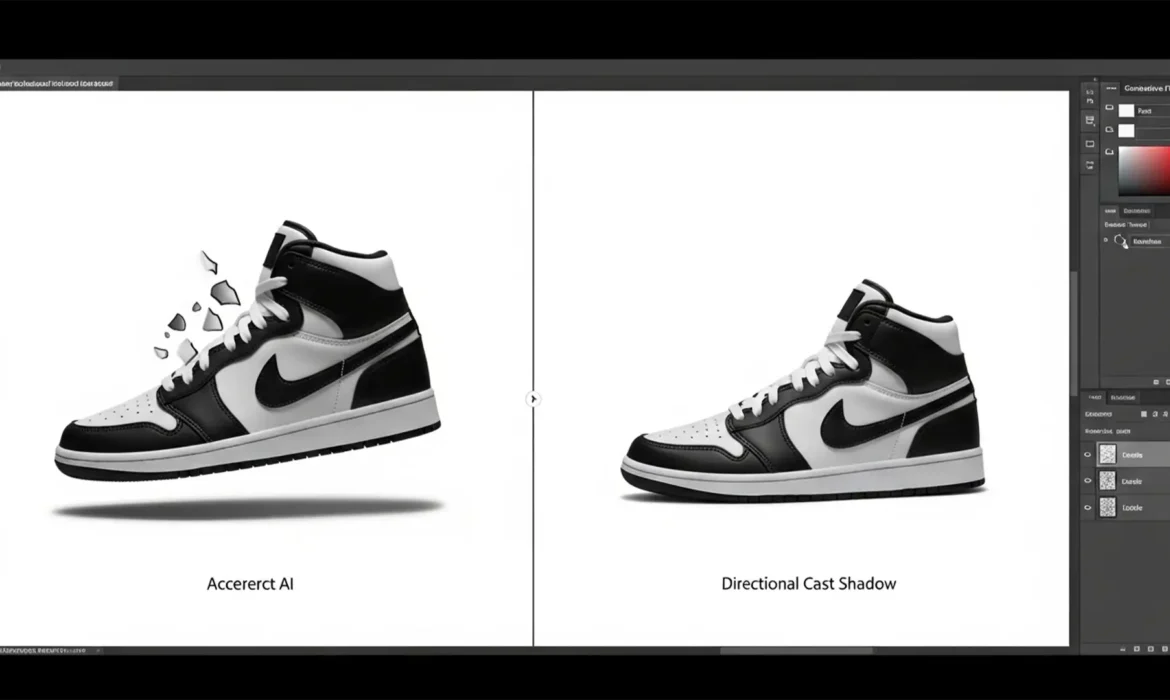
You have just used Photoshop’s AI tools to create a stunning new background for your e-commerce product. But there is a glaring problem: the item looks like it is hovering in mid-air. This “floating product” effect is a massive conversion killer. When the AI engine processes a background replacement, it often ignores your original ambient light and global lighting direction, resulting in a frustrating Photoshop Generative Fill shadow mismatch fix requirement.
If you are tired of disjointed cast shadows ruining your catalog, you are in the right place. We will show you exactly how to ground your products using professional retouching techniques, from prompt adjustments to advanced luminosity matching.
Why the “Floating Product” Error Happens
In Photoshop v25.x and later, the generative features are powered by Adobe Firefly. While excellent at creating textures and environments, the engine frequently misinterprets global lighting.
Because the AI processes the masked bounding box independently from the original composite’s ambient light, it fails to recognize the physical interaction between the product and the floor. This results in disjointed cast shadows, incorrect light direction, and a complete lack of ambient occlusion (the dark, tight shadows where two objects meet).
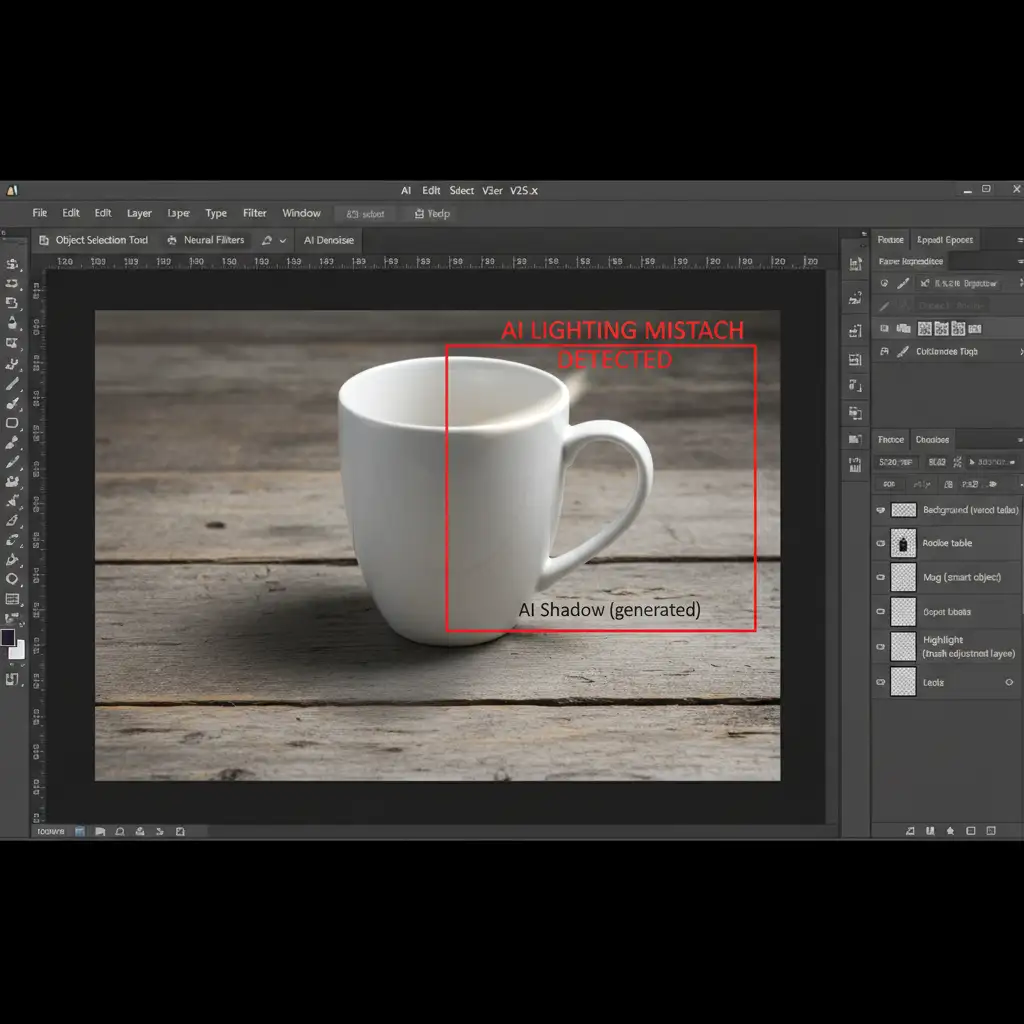
3 Professional Methods to Fix Generative Fill Shadows
Relying solely on AI for e-commerce imagery is a risk. Here are three proven methods to correct shadow mismatches, ranging from quick fixes to professional studio techniques.
Method 1: The Quick Fix Using Prompt Engineering
Before doing manual brushwork, try forcing the AI to understand your lighting intent through precise prompt engineering.
- Select your Generative layer in the Layers panel.
- Open the Properties panel.
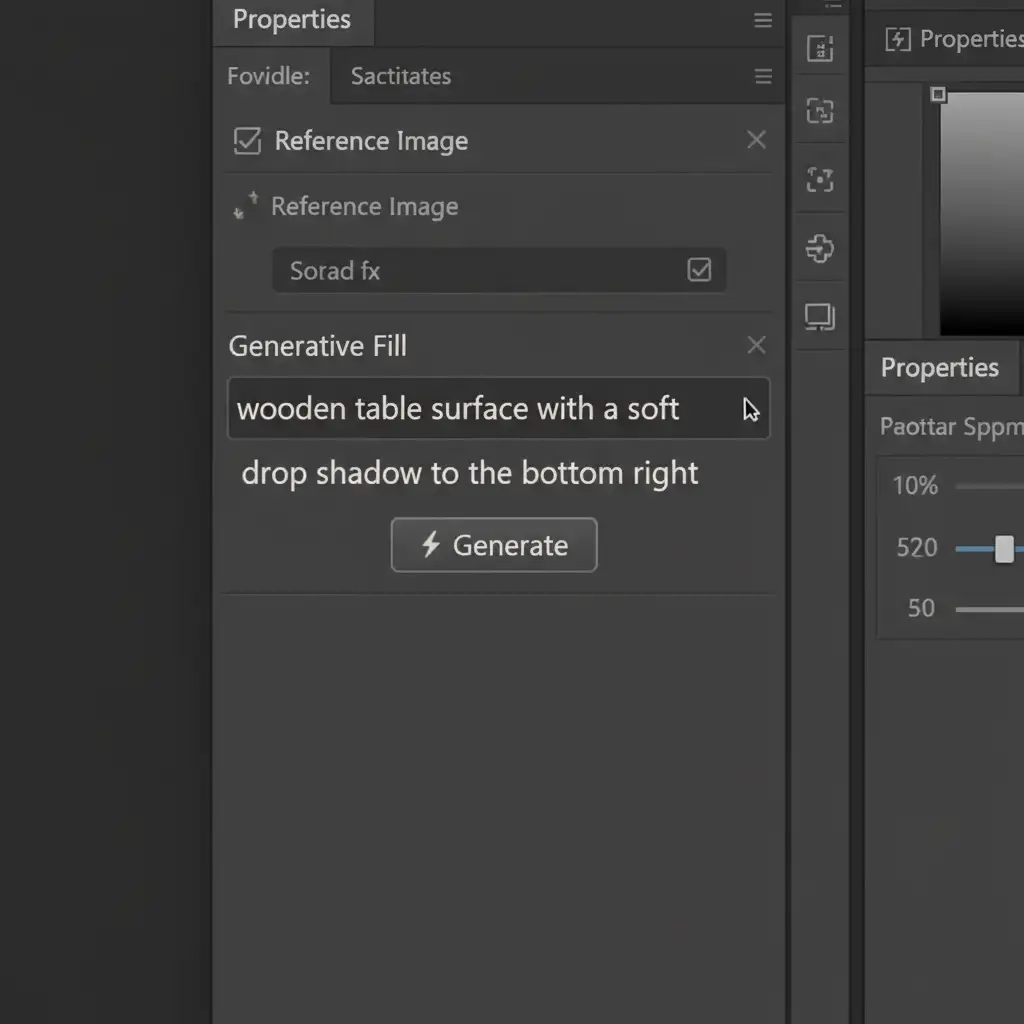
- Instead of leaving the prompt blank or using a generic background description, update your text to explicitly state the light direction and shadow quality.
- Use phrases like: “soft drop shadow to the bottom right” or “long harsh cast shadow from top left lighting.”
- Hit Generate to cycle through new variations.
Method 2: The Pro Workaround with Layered Contact Shadows
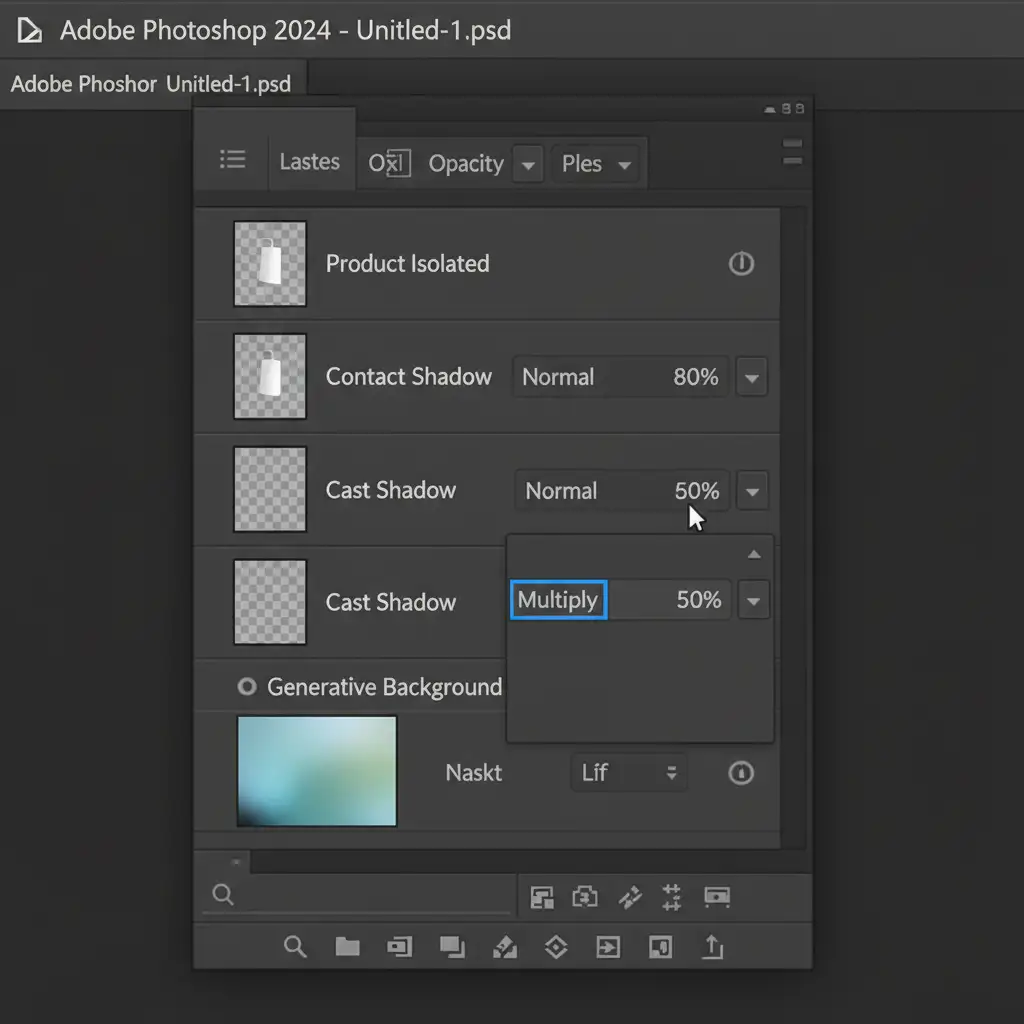
If prompt refinement fails, the industry-standard approach is to build the shadows manually. Ignore the AI shadow completely and construct realistic grounding using two distinct layers.
- Create the Contact Shadow: Create a new layer directly beneath your isolated product layer. Select a soft round brush set to black at 20 percent opacity. Paint a very tight, dark line exactly where the product touches the surface. This replicates ambient occlusion.
- Create the Cast Shadow: Create a second new layer below the product. Paint the directional cast shadow based on the highlights visible on your product.
- Refine and Blend: Apply a Gaussian blur to the cast shadow layer to soften the edges as they move further from the object. Finally, set this layer’s blend mode to Multiply blend mode and reduce the opacity to around 50 percent to allow the background texture to show through realistically.
Method 3: The Technical Deep-Dive Using Luminosity Matching
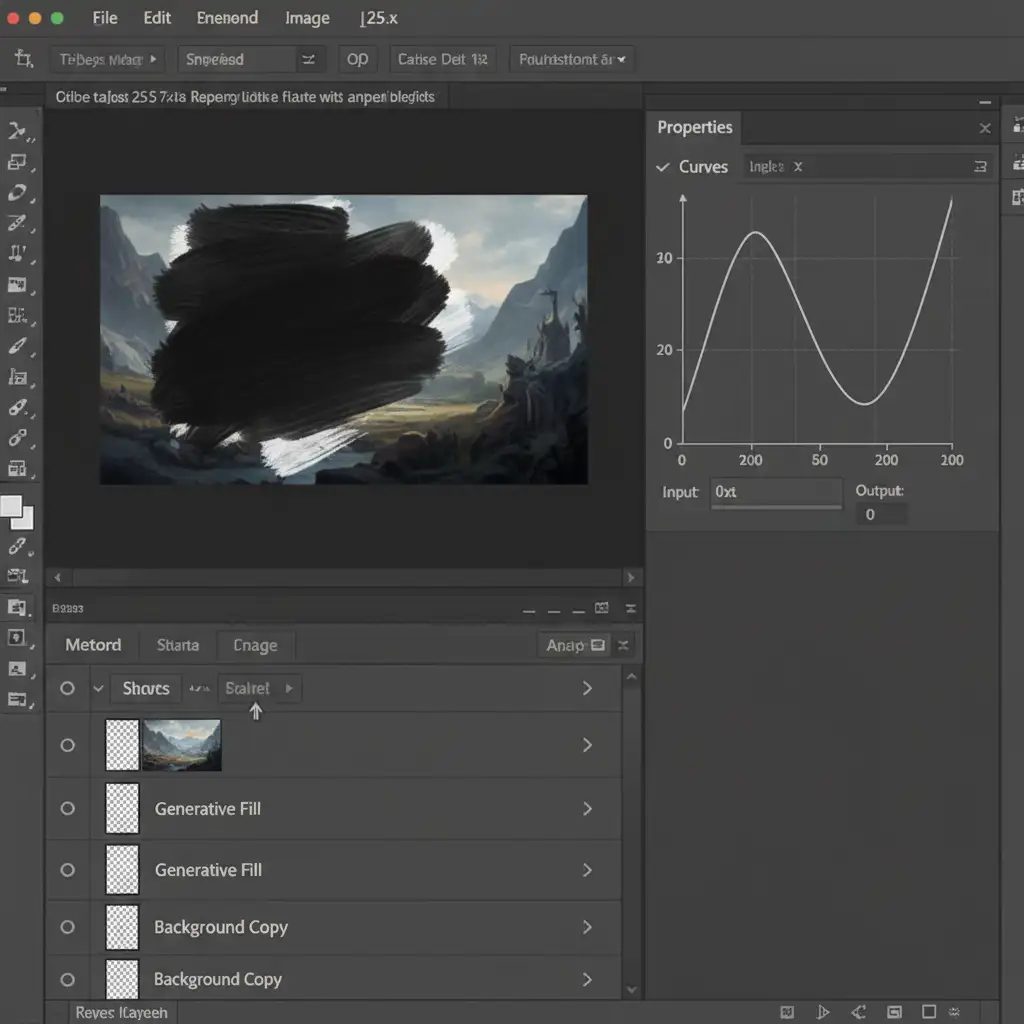
Sometimes the AI generates a shadow with the correct shape, but the density and luminosity are entirely wrong, making the shadow look washed out or gray. You can fix this using a targeted Curves adjustment.
- Isolate the AI-generated shadow using selection tools.
- Add a Curves Adjustment Layer.
- Turn it into a Clipping mask by holding Alt/Option and clicking between the Curves layer and the Generative layer, ensuring your adjustments only affect the AI background.
- Drag the midtones down on the curve to darken the shadow, ensuring the black point matches the darkest part of your original product image.
- Invert the layer mask (Ctrl/Cmd + I) to hide the adjustment.
- Use a soft white brush to manually paint in realistic shadow density exactly where the AI failed.
Scale Your E-Commerce Retouching with Image Work India
Mastering the Photoshop Generative Fill shadow mismatch fix is essential for creating believable composites, but executing these multi-layered shadow techniques across hundreds of product SKUs is incredibly time-consuming.
If you are struggling to get realistic shadows for your e-commerce catalog, you don’t have to do it alone. Hire Image Work India and Cloud Retouch. Our expert retouchers specialize in pixel-perfect shadow creation, complex masking, and high-volume product retouching. We ensure every product looks perfectly grounded, professionally lit, and ready to convert browsers into buyers.
Contact Image Work India today to streamline your post-production workflow and elevate your brand’s visual standards.



