
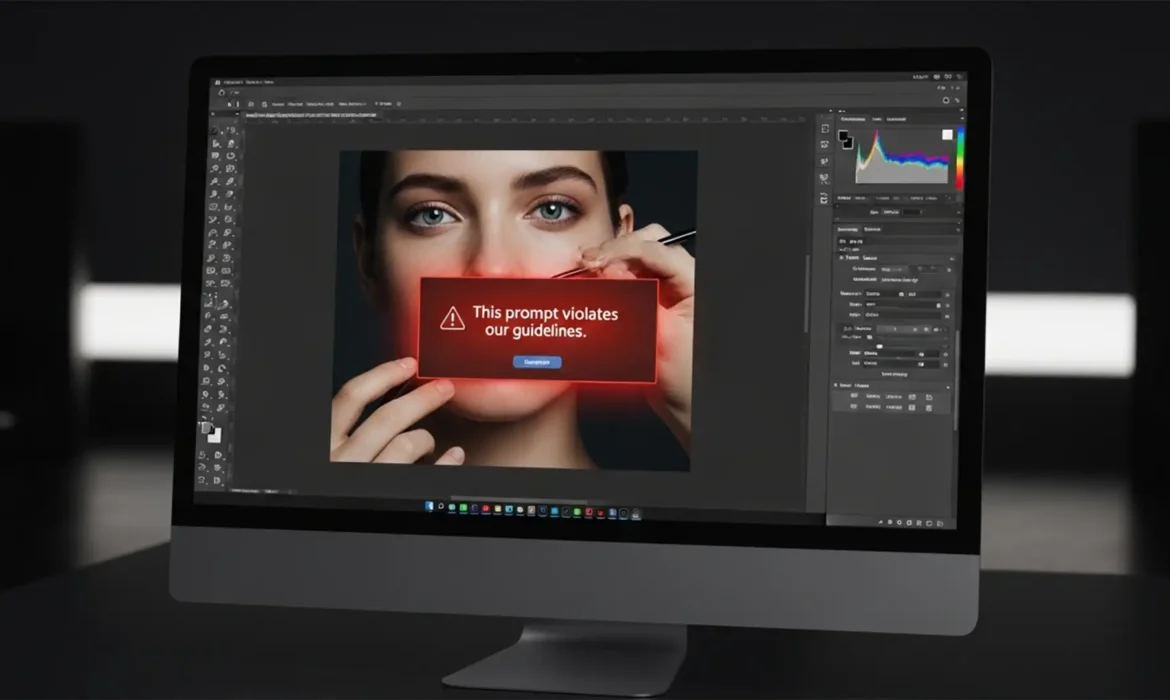
You are on a tight deadline, retouching a high-end portrait in Photoshop. You select a minor blemish, hit generate, and suddenly a red warning halts your progress: “This prompt violates our guidelines.”
It is infuriating. Finding a reliable Photoshop Generative Fill guidelines violation bypass for skin is currently one of the biggest pain points for professional retouchers. Because Adobe Firefly relies on a strict cloud-based NSFW safety filter, it frequently flags bare skin, natural body textures, and shadows as restricted content.
If you are tired of these false positives ruining your non-destructive workflow, here is exactly why this happens and the professional workarounds you need to bypass the filter and get back to editing.
Why Does Generative Fill Block Skin Retouching?
In Photoshop v24.5 and newer, Adobe integrated Generative Fill, powered by their proprietary Adobe Firefly AI. While incredibly powerful for adding or removing objects, Firefly processes all generations via Adobe’s cloud servers.
To comply with global safety standards, these servers utilize an aggressive NSFW safety filter. When you select an area of skin—especially on shoulders, chests, or close-up facial features—the AI strips away the surrounding context. It analyzes the isolated patch of skin tones and curves, misinterprets it as inappropriate content, and throws a false positive.
Because this moderation happens in the cloud, adjusting your local GPU settings will not fix it. You have to change your workflow.
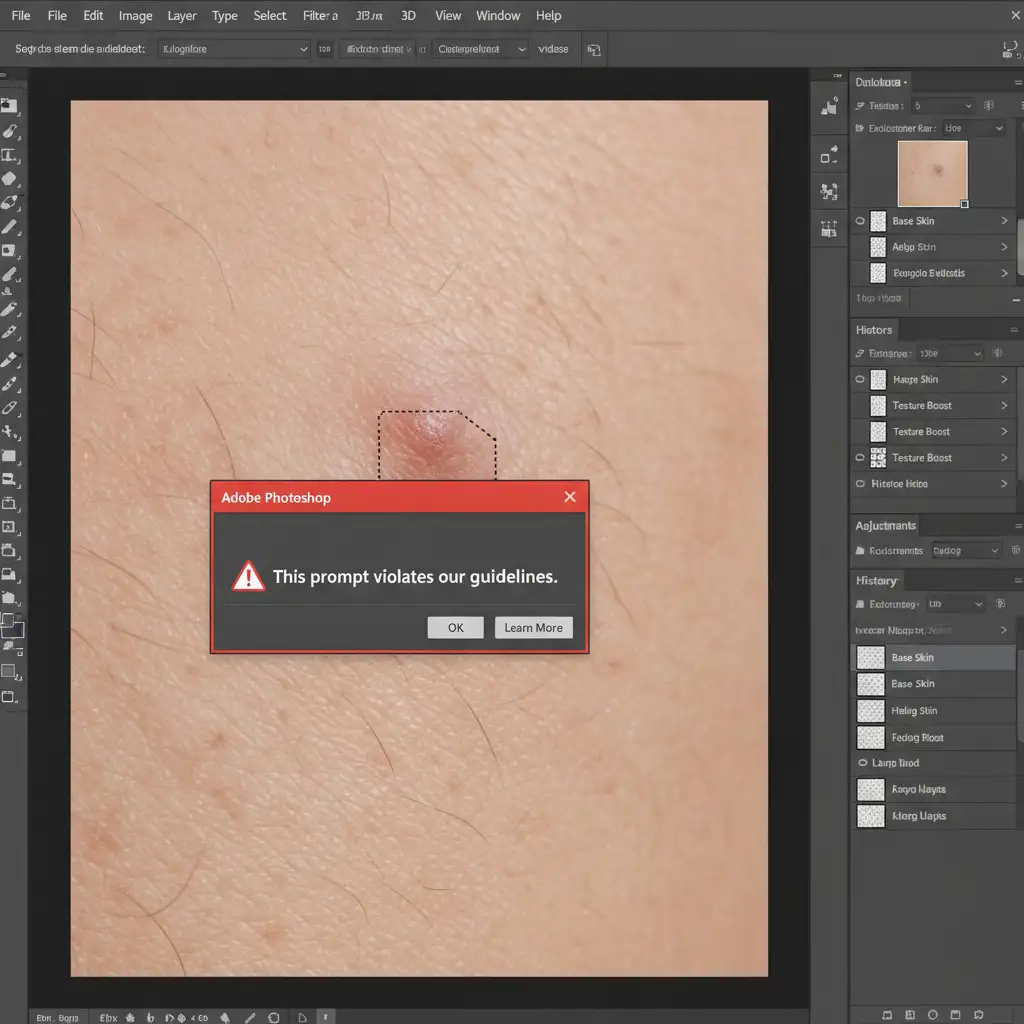
How to Bypass the Guidelines Violation: 3 Professional Fixes
To keep your non-destructive workflow intact, you must either prevent the cloud filter from recognizing the skin or bypass the internet entirely. Here are three proven methods.
Method 1: The Micro-Selection Technique (The Quick Fix)
The most common mistake retouchers make is selecting too large of an area. Wide selections give the AI too much anatomical data, triggering the filter.
Instead, use the Lasso Tool to make micro-selections. Target only the specific blemish, stray hair, or pore you want to remove. Keep the marching ants as tight to the defect as possible. Leave the prompt box completely blank and hit Generate. Because the selected area is so small, it lacks the context required to trigger the safety algorithm.
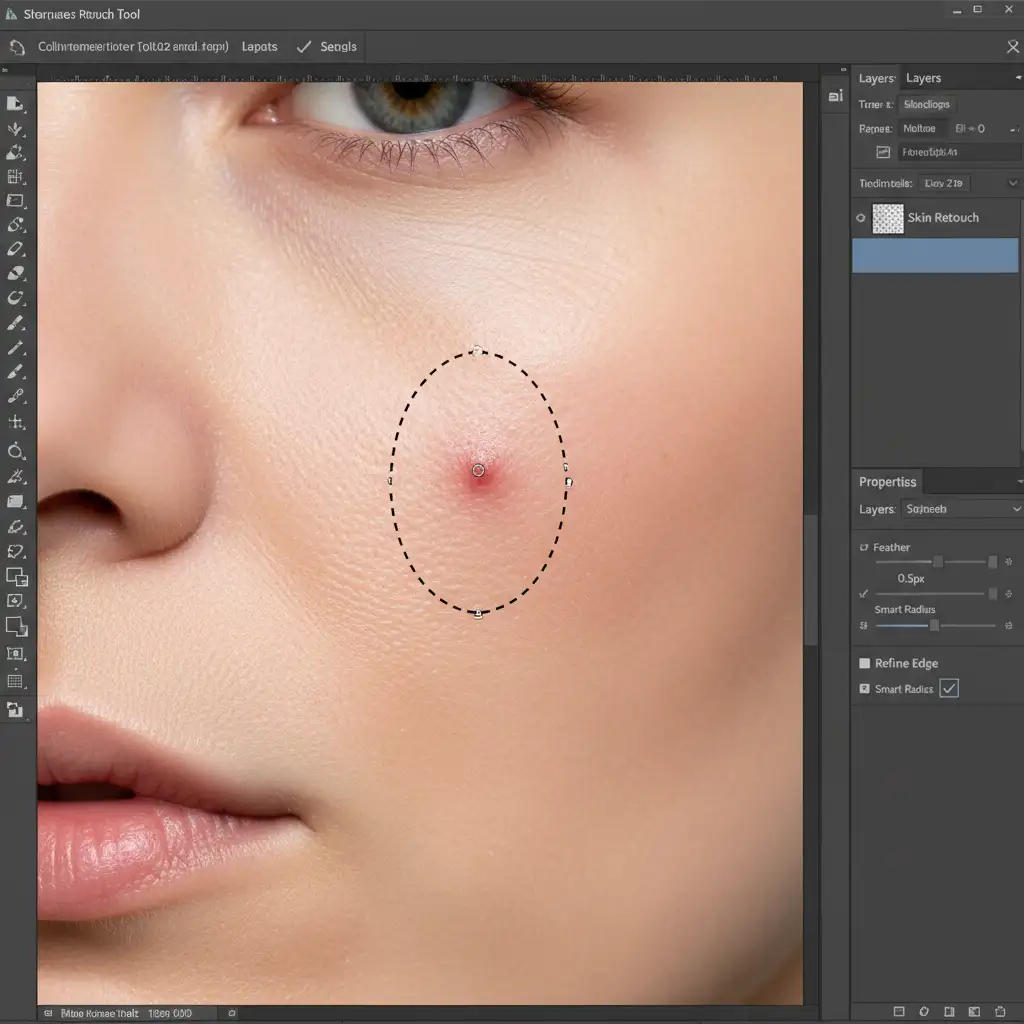
Method 2: Neutral Prompting in the Contextual Task Bar
If a blank prompt still results in a violation, the issue lies in how the AI interprets your intent. Never use anatomical words like “skin,” “face,” “body,” or “fix blemish” when retouching portraits.
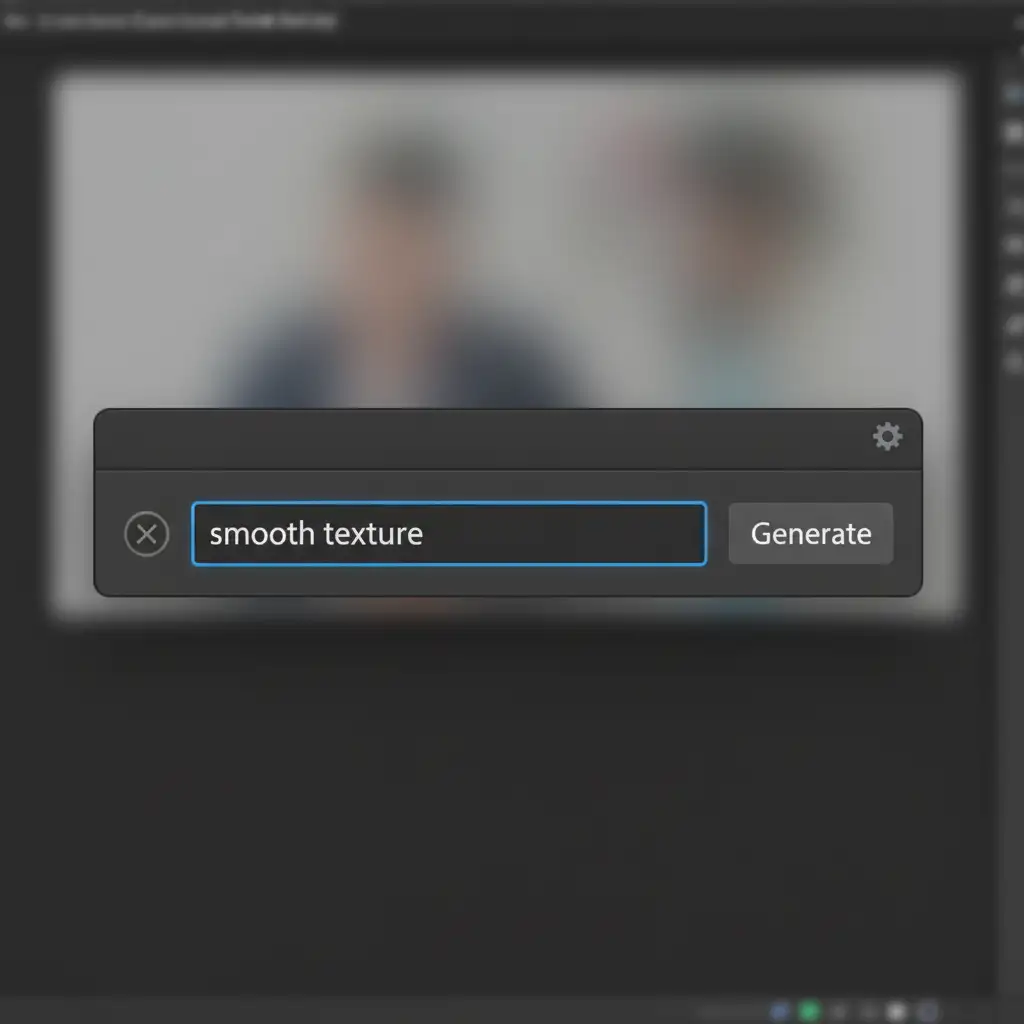
Instead, use abstract, non-anatomical language in the Contextual Task Bar. By describing the texture rather than the body part, you can bypass the linguistic side of the NSFW filter.
Try these neutral prompts:
- “Smooth texture”
- “Beige gradient”
- “Seamless surface”
- “Even color tone”
Method 3: Local Processing Bypass (The Technical Deep-Dive)
If the cloud-based AI refuses to cooperate, the ultimate Photoshop Generative Fill guidelines violation bypass for skin is to stop pinging Adobe’s servers altogether. By reverting to local, device-processed tools, you eliminate the moderation filter entirely.
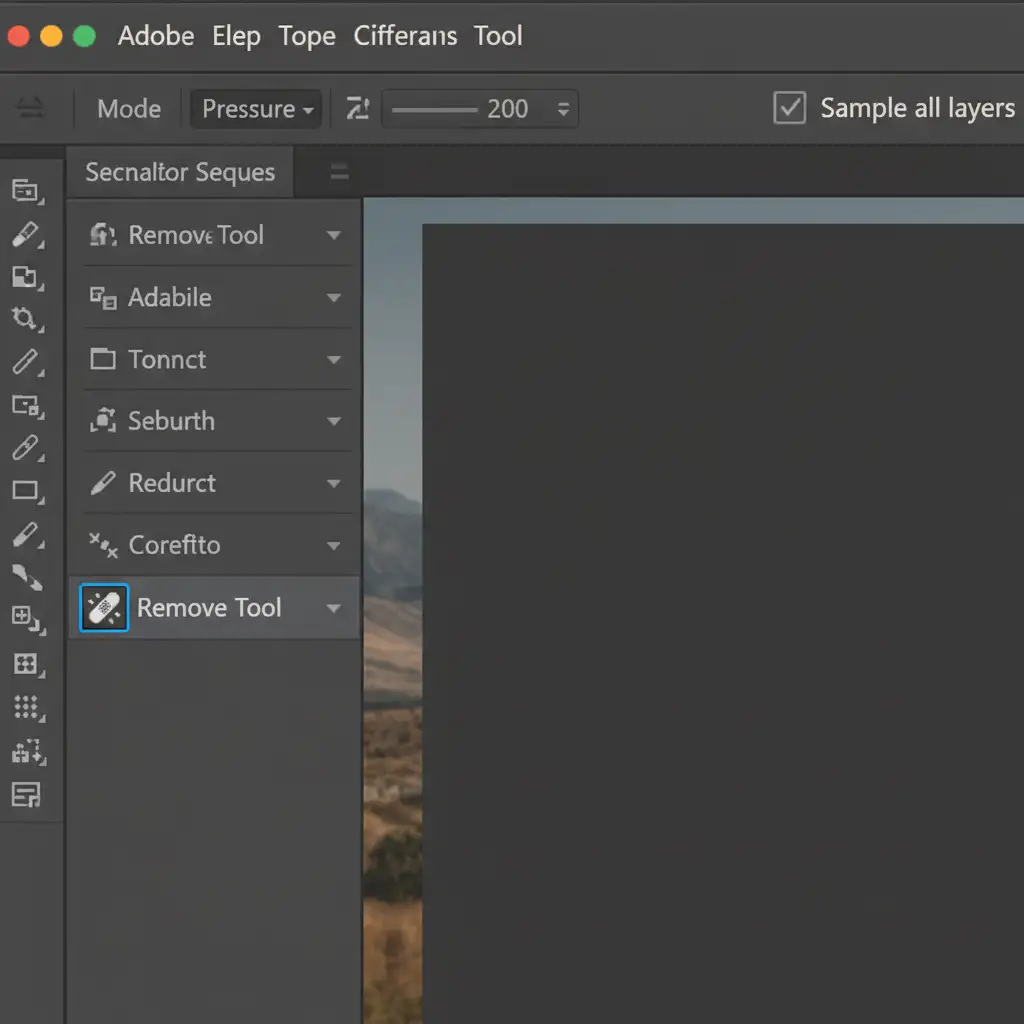
Utilize the AI-Powered Remove Tool
The Remove Tool is processed locally on your machine and does not require internet moderation. It is often faster and more accurate for skin than traditional Content-Aware Fill.
- Select the Remove Tool from the toolbar.
- In the top options bar, ensure Sample all layers are checked so you can work on a blank layer.
- Paint over the skin issue.
Fallback to Frequency Separation
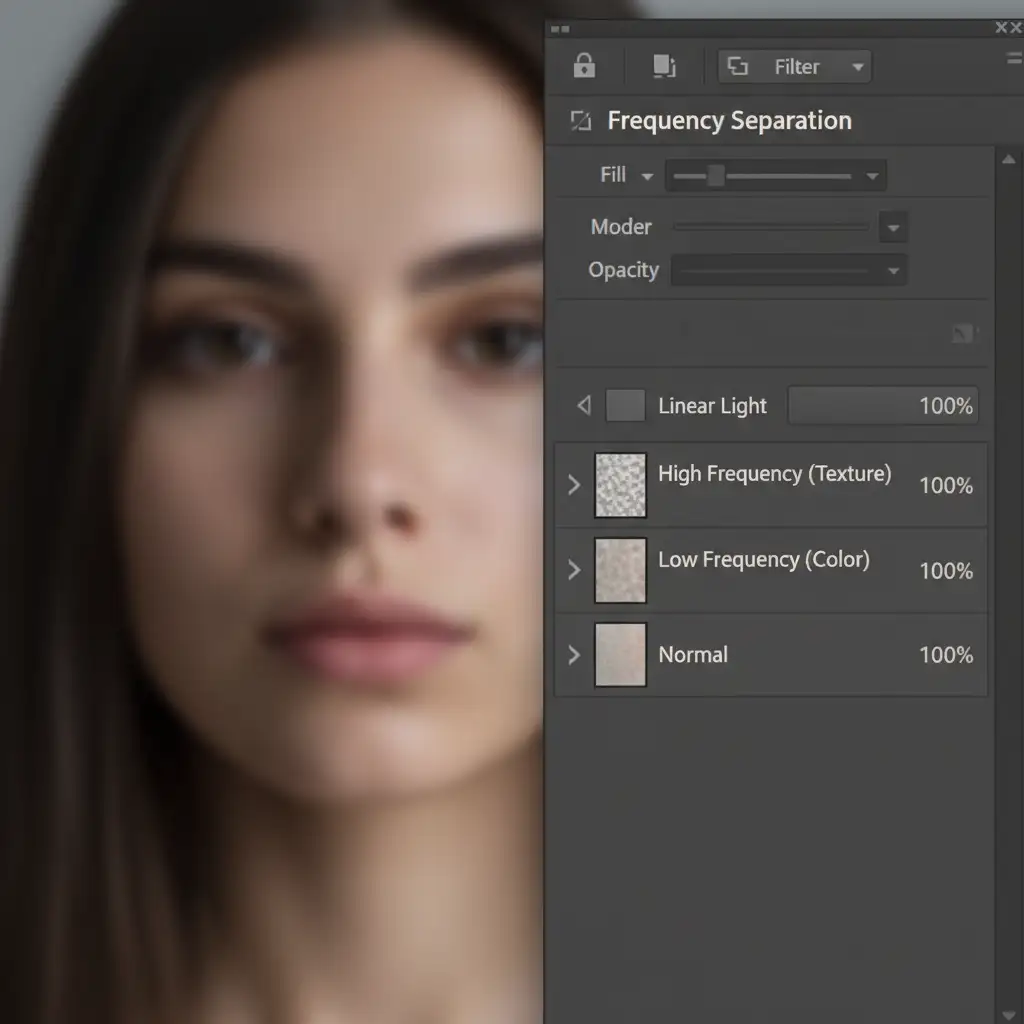
For high-end beauty and fashion retouching, Generative Fill often destroys natural skin texture anyway. Reverting to a traditional Frequency Separation workflow allows you to detach the skin’s texture (high frequency) from its underlying color (low frequency). This gives you total, unmoderated control over the retouching process without ever dealing with false positives.
Stop Wasting Time on AI Limitations
Navigating a Photoshop Generative Fill guidelines violation bypass for skin is frustrating, especially when you are processing hundreds of images for a major campaign. AI tools are supposed to speed up your workflow, not halt it with false positives and endless error messages.
If you are tired of fighting with restrictive algorithms and need flawless, high-end results at scale, outsource the heavy lifting. Image Work India and Cloud Retouch specialize in professional, human-driven photo editing. Our expert retouchers utilize advanced techniques like Frequency Separation and micro-dodging and burning to deliver perfect skin texture—without the AI artifacts or workflow interruptions.
Focus on shooting and growing your business. Let us handle the retouching. Contact Image Work India today for a custom quote on your next bulk editing project.



