
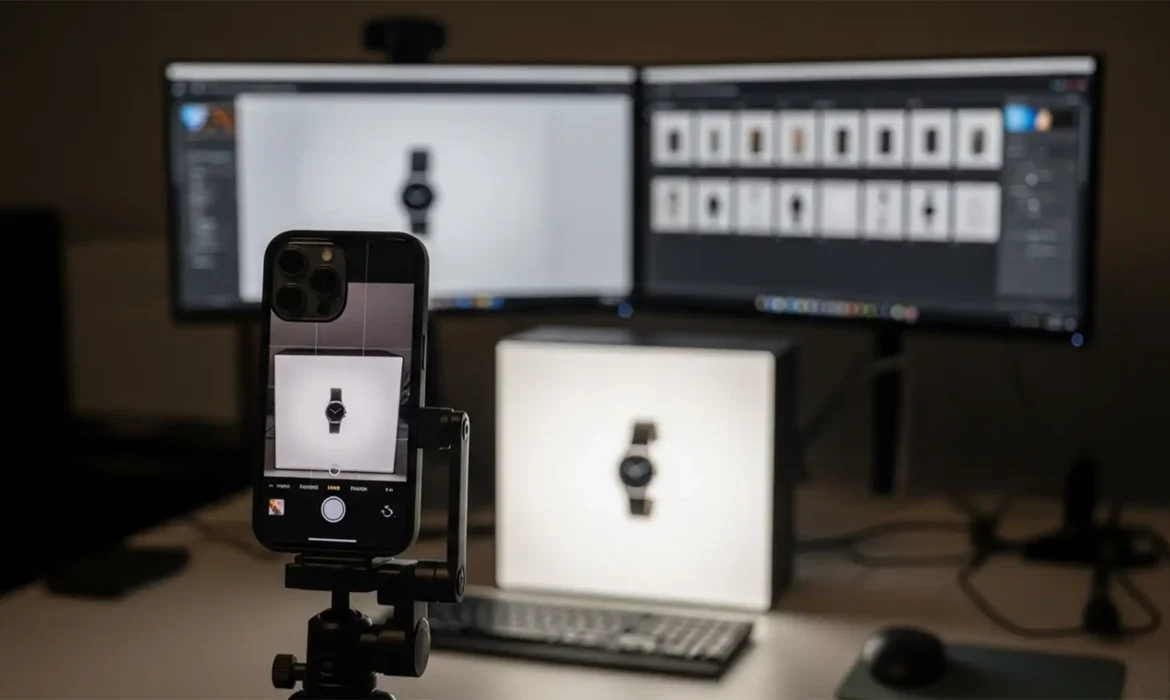
You just finished a massive product shoot using your iPhone. The images look incredibly crisp, but when you try to upload them to Amazon or Shopify, you hit a brick wall: “Unsupported File Format.”
Apple’s HEIC format is fantastic for saving storage space, offering high quality at half the file size of a JPEG. However, major e-commerce platforms do not natively support HEIC uploads. If you are manually converting files one by one, you are creating massive workflow bottlenecks. Mastering batch editing iPhone HEIC for e-commerce is essential to prevent color profile shifting, retain metadata, and get your products listed faster.
Here is the definitive guide to converting and processing your high-volume product photography quickly and professionally.
The HEIC Bottleneck in E-Commerce Product Photography
HEIC (High-Efficiency Image Container, or HEIF) relies on advanced compression codecs to maintain image fidelity. While native to the Apple ecosystem, it creates friction when moving from an iPhone to a marketplace.
When e-commerce sellers try to force HEIC files into standard web workflows without proper batch processing, they often experience:
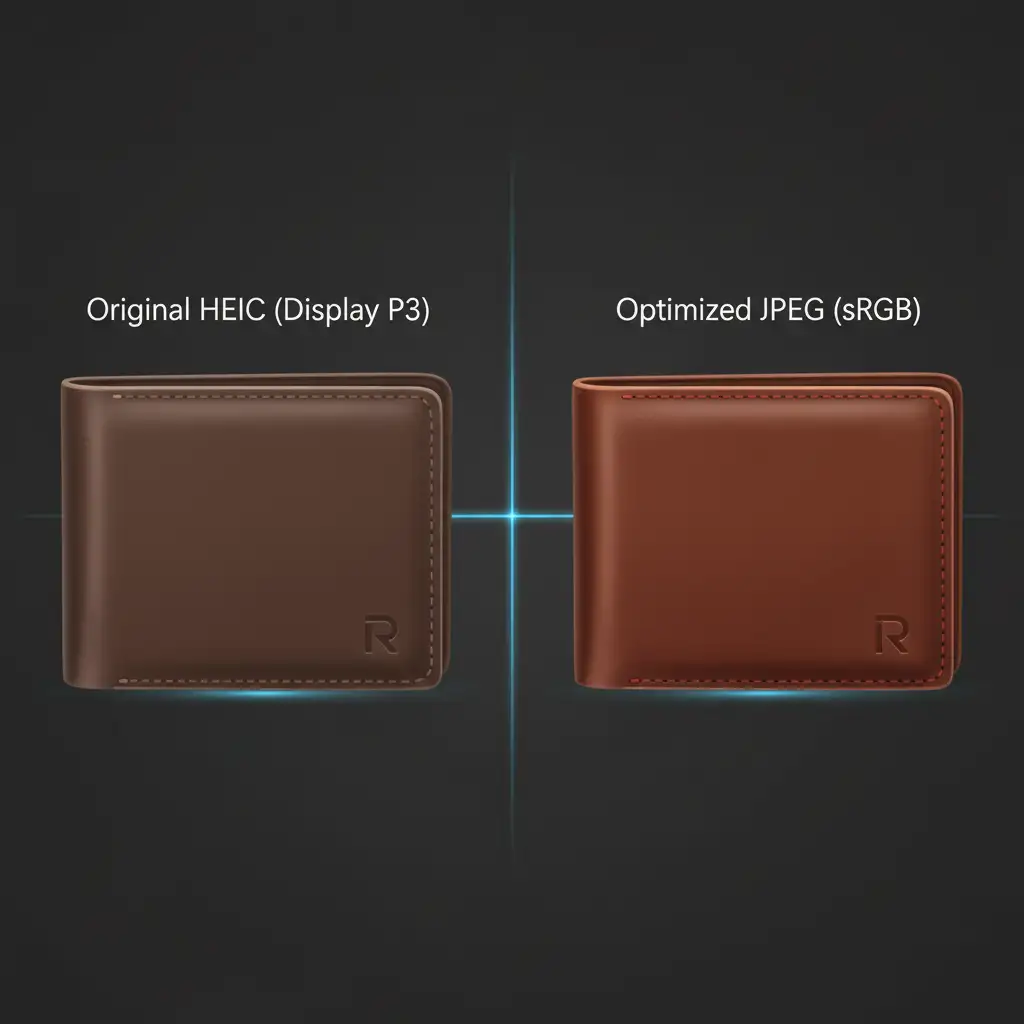
- Color Profile Shifting: Vibrant product colors look washed out when improperly converted.
- Metadata Loss: Important EXIF data (camera settings, copyright info) gets stripped.
- Software Incompatibility: Windows users often find their OS cannot even read the codec without downloading the HEVC Video Extensions from the Microsoft Store.
To solve this, you need a streamlined workflow that converts HEIC to web-standard sRGB JPEGs while applying uniform product edits.
How to Batch Convert and Edit HEIC Files (3 Professional Methods)
Depending on your software stack, here are three ways to execute flawless batch processing.
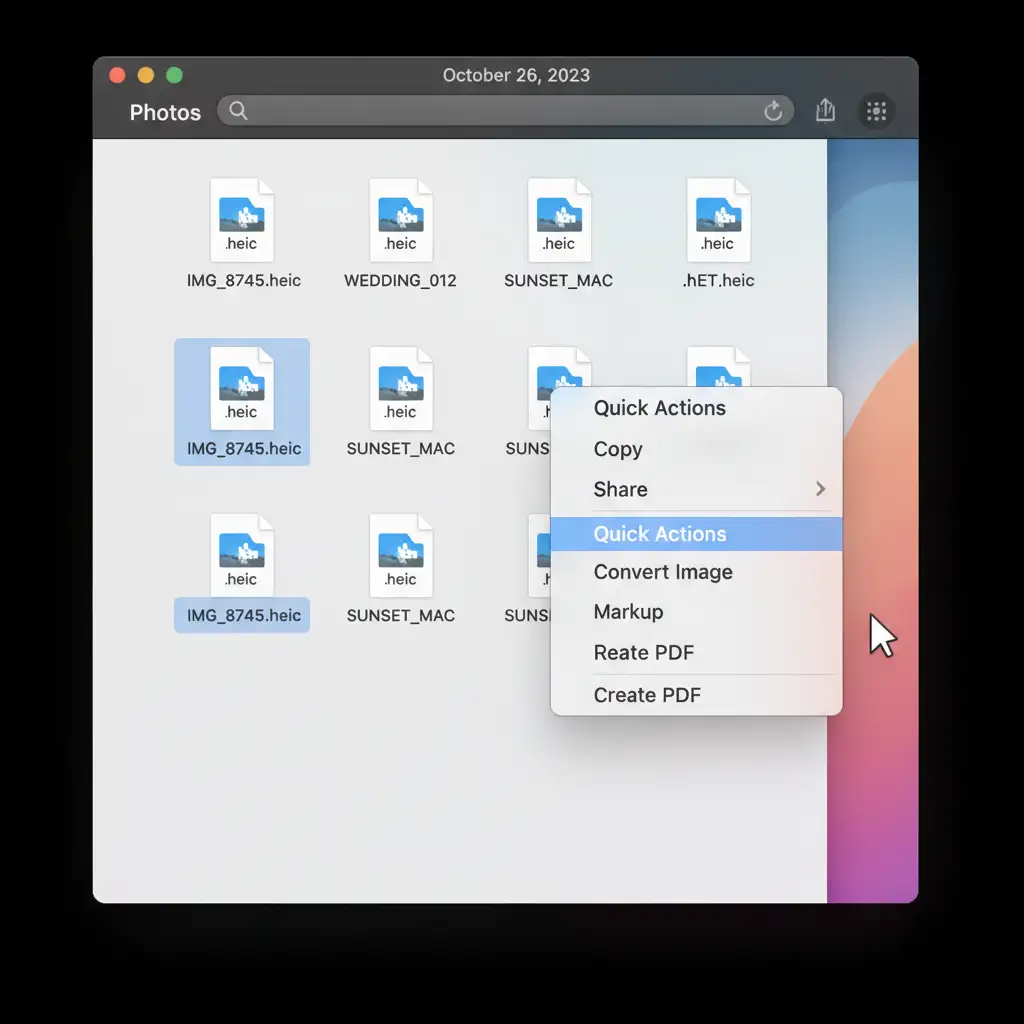
Method 1: The Quick Fix (macOS Built-in Quick Actions)
If your product photos require zero retouching and you simply need them in JPEG format immediately, macOS has a built-in batch conversion tool.
- Open Finder and locate the folder containing your HEIC files.
- Highlight all the images you want to convert.
- Right-click the selected files and navigate to Quick Actions.
- Click Convert Image.
- Choose JPEG as the format and select your desired file size, then click Convert to JPEG.
Method 2: The Pro Workaround (Lightroom Classic Batch Sync)
For high-volume product photography, raw conversion isn’t enough. You need consistent lighting and color accuracy across all your listings. Adobe Lightroom Classic (v12.x+) offers native HEIC support via Adobe Camera Raw, making it the perfect tool for bulk edits.
- Import your HEIC folder into Lightroom Classic.
- Select the first image in your catalog and navigate to the Develop module.
- Apply your foundational edits: fix the exposure, tweak the background, and set an accurate white balance.
- Select all other images in the filmstrip (Ctrl+A / Cmd+A).
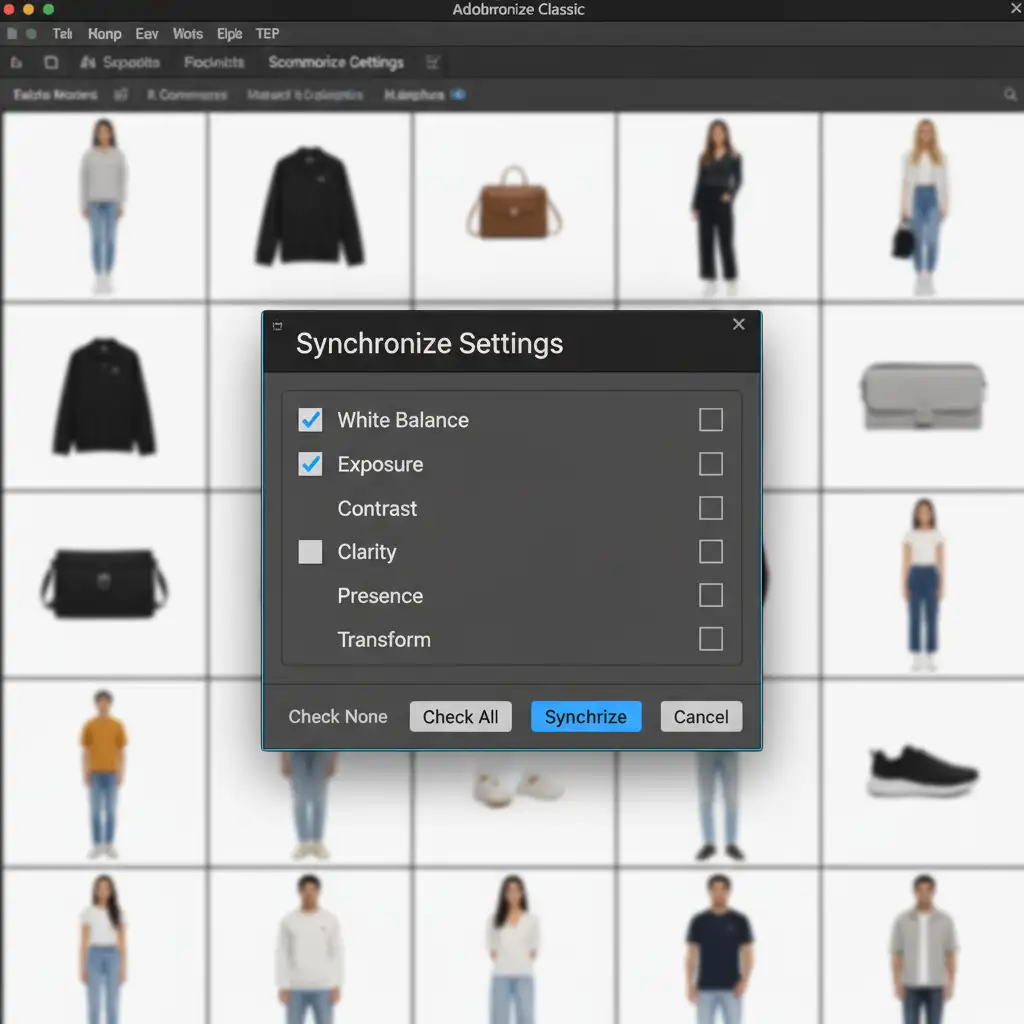
- Click the Sync button at the bottom right.
- In the Sync Settings dialog box, ensure boxes like White Balance, Exposure, and Color are checked, then hit Synchronize.
- Navigate to File > Export, set the format to JPEG, set the Color Space to sRGB, and export your web-ready batch.
Method 3: The Technical Deep-Dive (Photoshop Image Processor Script)
If your workflow involves complex clipping paths or advanced retouching in Adobe Photoshop (v24.x+), you can automate the conversion process using Photoshop’s built-in scripting tools.
- Place all your HEIC files into a single “Source” folder.
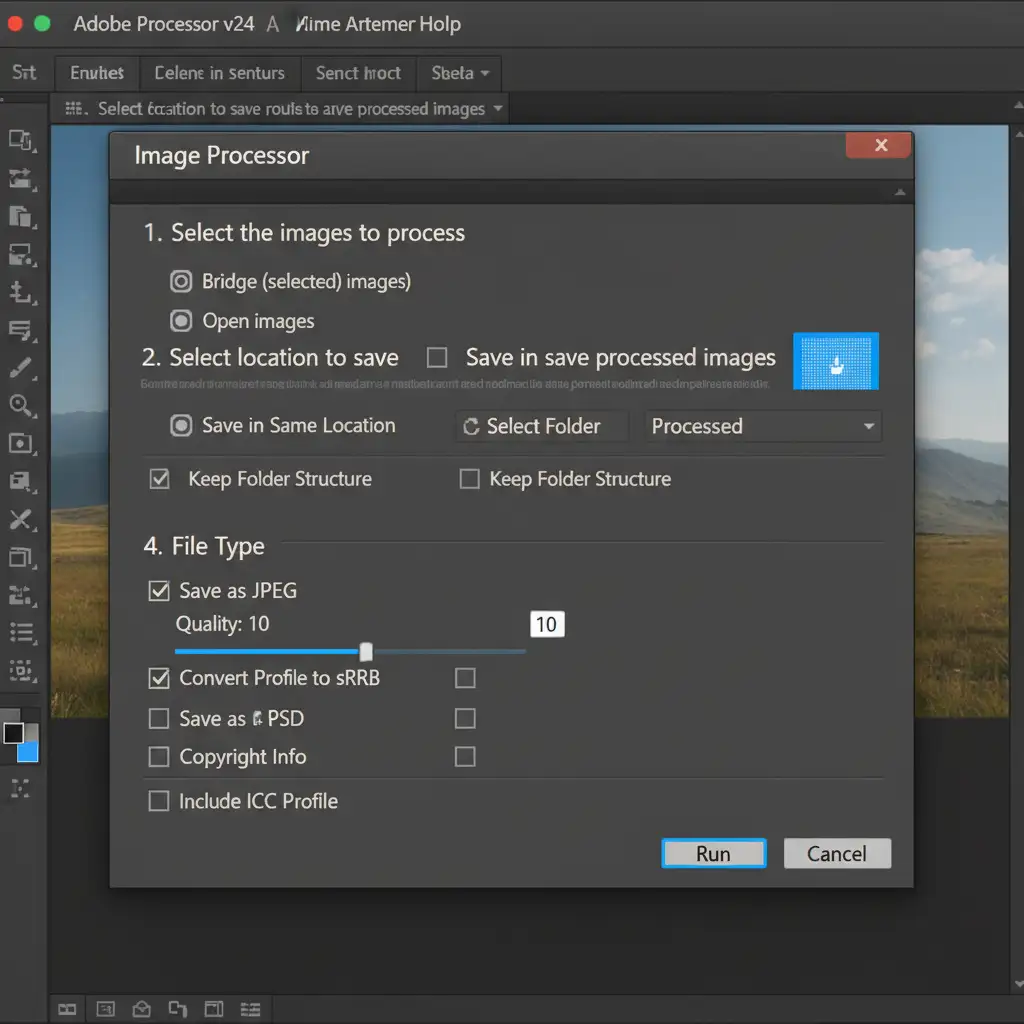
- Open Photoshop and navigate to File > Scripts > Image Processor.
- In Step 1, select your HEIC Source folder.
- In Step 2, define a Destination folder for the new files.
- In Step 3, check Save as JPEG, set the Quality between 8 and 10 (for optimal lossless compression balance), and—most importantly—check Convert Profile to sRGB.
- Click Run. Photoshop will automatically open, process, and save every image, retaining all crucial EXIF data in the process.
Verifying Your E-Commerce Output
Before uploading to Amazon or Shopify, always verify your batch output. By checking the “Convert Profile to sRGB” box during your batch processing, you prevent the dull, desaturated look that occurs when wide-gamut HEIC files are forced onto standard web browsers.
Scale Your E-Commerce Business with Professional Retouching
Batch editing iPhone HEIC for e-commerce is a great skill to learn, but as your business scales, managing hundreds or thousands of product images becomes a full-time job. Minor inconsistencies in white balance sync, background removal, or color profiles can lead to lower conversion rates and increased product returns.
Need pixel-perfect product images optimized for high-converting marketplace listings? Outsource your batch processing, clipping paths, and advanced retouching needs to the experts at Image Work India and Cloud Retouch. We handle the technical bottlenecks—from HEIC conversion to flawless background removal—so you can save hours of manual processing and focus on growing your brand.



