
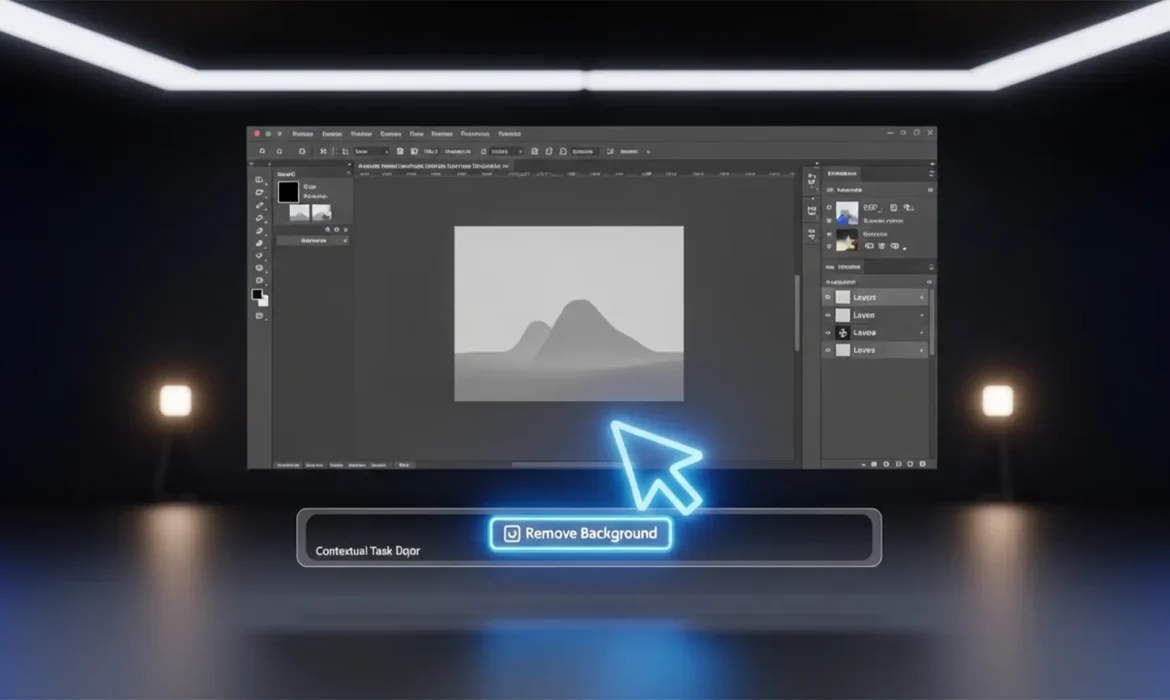
You are on a tight deadline, staring at your screen, and suddenly realize the one-click magic tool you rely on is gone. If you are frantically searching for a Photoshop Remove Background button missing 2024 fix, you are not alone.
When Adobe introduced Photoshop 2024 (v25.x), they streamlined workflows by moving the Remove Background tool to a floating UI element called the Contextual Task Bar. However, this bar is notoriously easy to accidentally dismiss, drag off-screen, or disable by working on a locked layer.
In this guide, we will walk you through exactly how to restore your missing task bar, fix grayed-out Quick Actions, and get your workflow back on track.
Why Did the Remove Background Button Disappear?
The disappearance of the Remove Background button usually boils down to three technical pain points:
- Accidental Dismissal: The Contextual Task Bar was closed or dragged to a disconnected secondary monitor.
- Locked Layers: Attempting to use Quick Actions on a locked Background Layer causes the AI tools to gray out.
- Software Glitches: Corrupted workspace preferences, disconnected Adobe Creative Cloud syncs, or hardware acceleration issues preventing Adobe Sensei AI tools from loading.
Here is how to fix it, ranked from the fastest solution to the deepest technical troubleshoot.
Method A: The Quick Fix (Restoring the UI)
If your button suddenly vanished mid-edit, you likely hid the task bar by mistake.
Step 1: Restore the Contextual Task Bar
The easiest way to get your button back is to force Photoshop to display the floating menu.
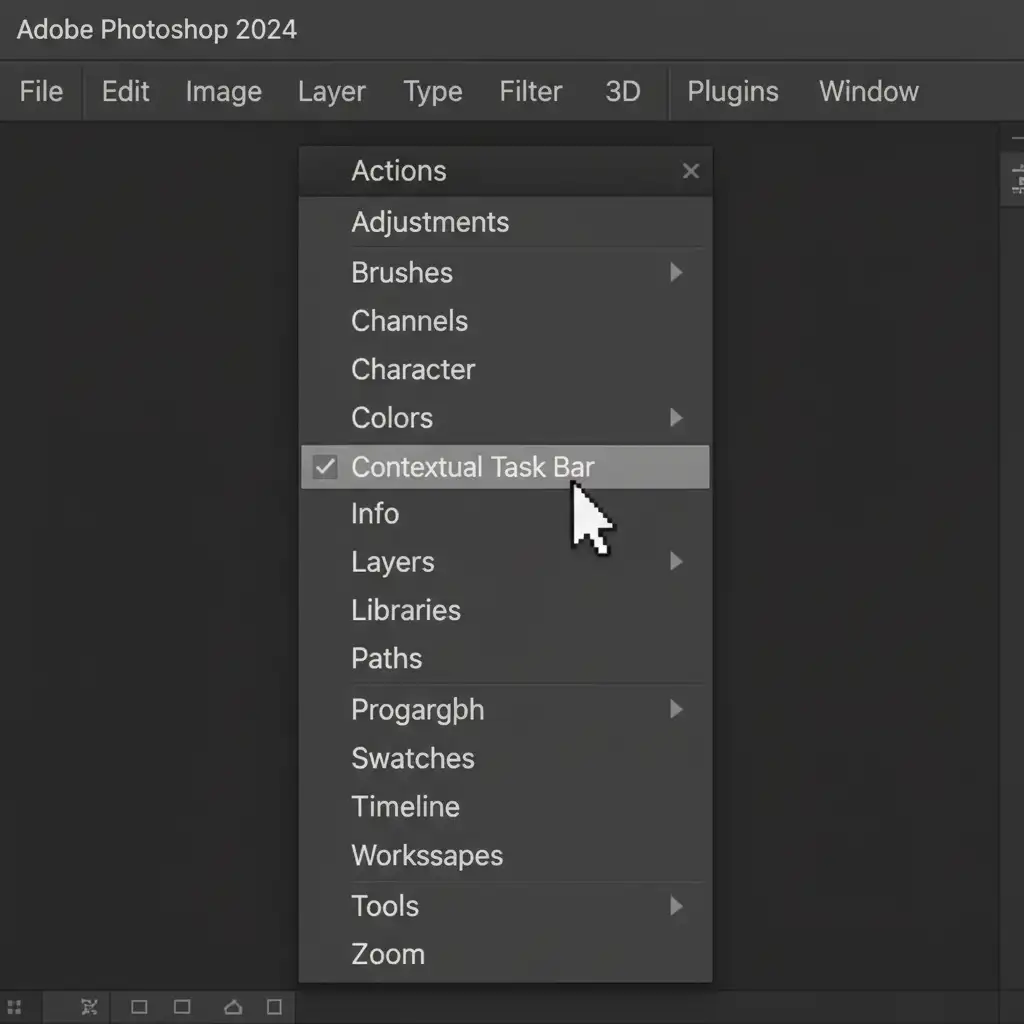
- Navigate to the top menu bar.
- Click on Window.
- Scroll down and ensure the Contextual Task Bar is checked.
Step 2: Fix Grayed-Out Quick Actions
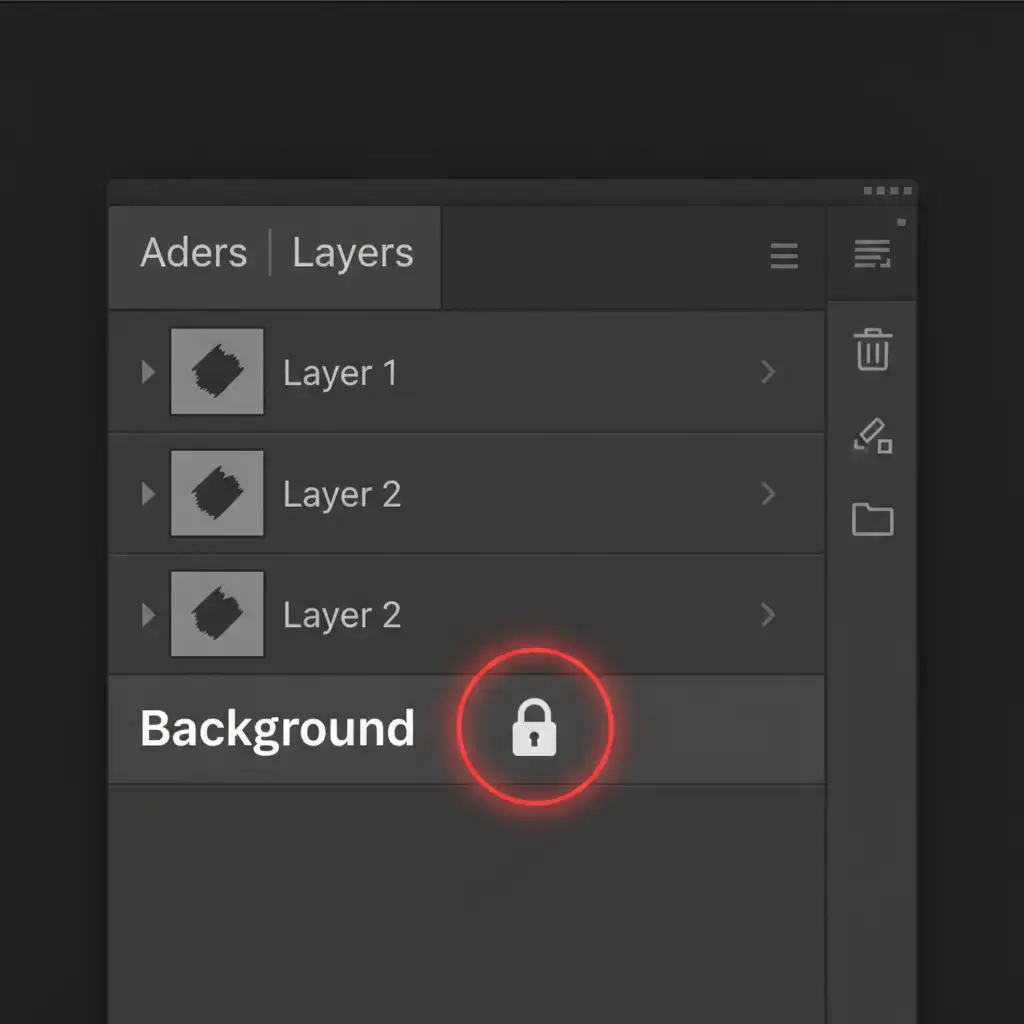
If the Contextual Task Bar is visible, but the Remove Background button is grayed out and unclickable, the issue lies in your Layers Panel. Photoshop cannot apply an Alpha Channel or Layer Mask directly to a locked background.
- Open your Layers Panel.
- Locate your active layer (usually named “Background”).
- Click the padlock icon on the right side of the layer to unlock it, converting it into a standard “Layer 0”. The Remove Background button will instantly become clickable.
Method B: The Pro Workaround (Using Native Panels)
If the floating task bar remains buggy, keeps pinning itself off-screen, or you simply prefer a static workspace, you can access the exact same Adobe Sensei AI tools through traditional panels.
Accessing Quick Actions via the Properties Panel
The Properties Panel serves as a reliable fallback for all AI-driven masking tools.
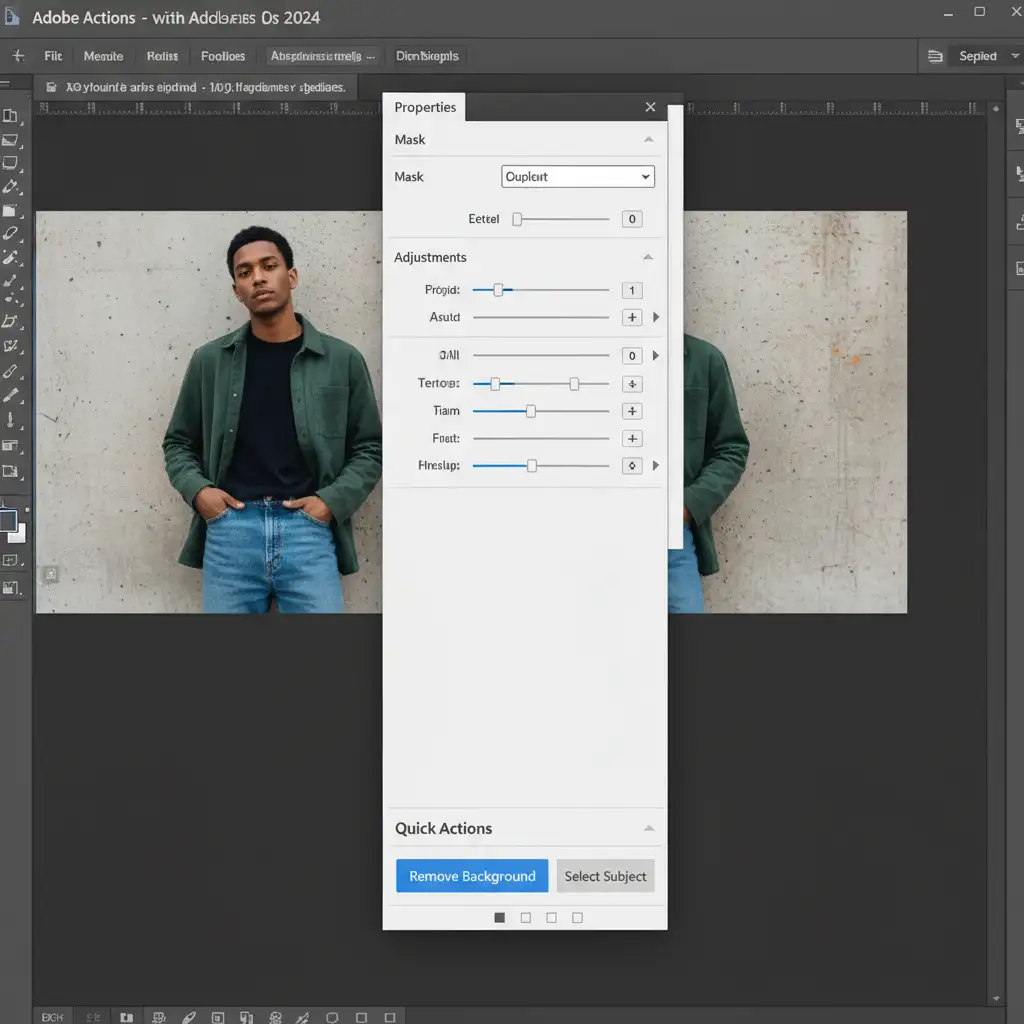
- Go to Window > Properties to open the Properties Panel.
- Scroll down to the Quick Actions section.
- Click the Remove Background button located there.
The Manual Select Subject Method
If the Quick Actions tab is missing entirely, you can replicate the exact same process manually:
- Click Select > Subject from the top menu.
- Once the marching ants appear around your subject, click the Add Layer Mask icon (the rectangle with a circle inside) at the bottom of the Layers Panel.
Method C: The Technical Deep-Dive
If neither the Contextual Task Bar nor the Properties Panel is showing your Quick Actions, your Photoshop installation is experiencing a deeper configuration issue.
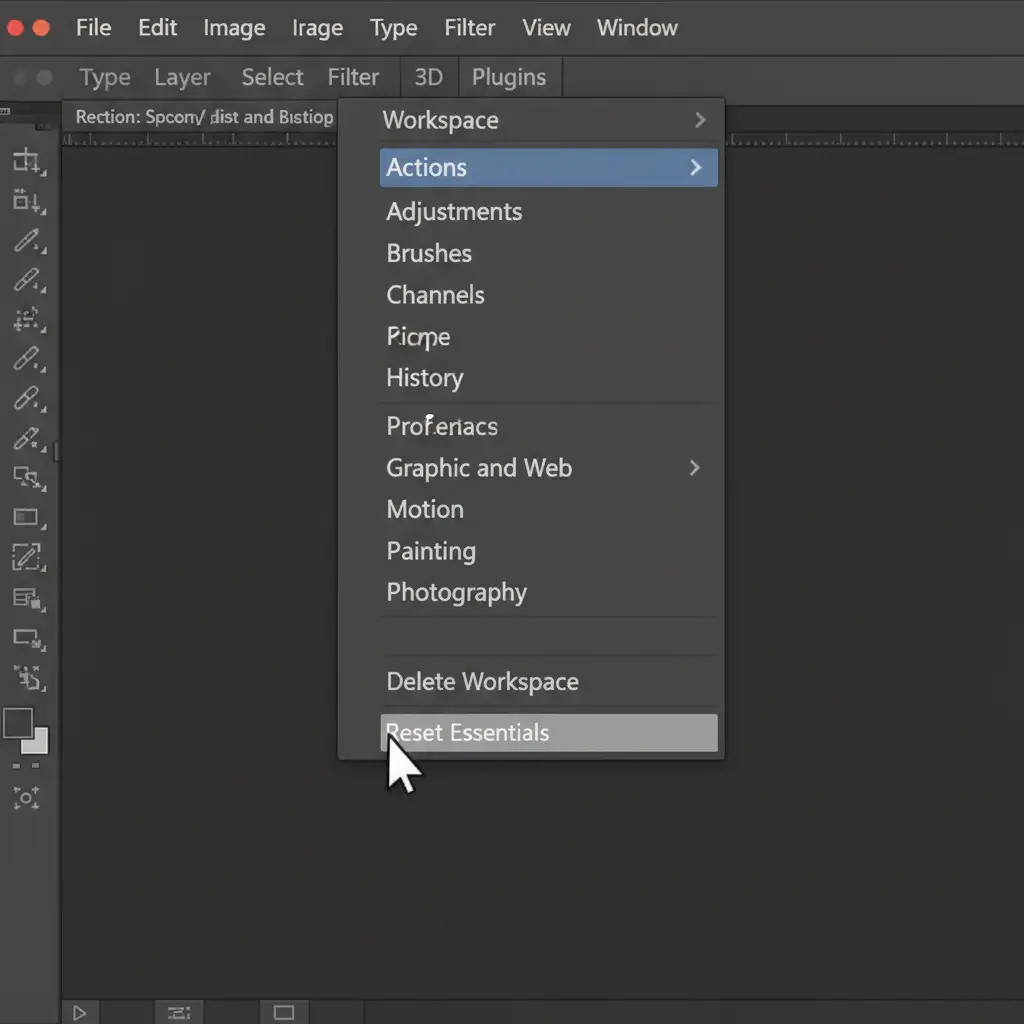
Step 1: Execute a Workspace Reset
Corrupted UI layouts often hide essential panels. Resetting your workspace forces Photoshop to rebuild the default UI.
- Go to Window > Workspace.
- Select Reset Essentials.
Step 2: Verify GPU Acceleration and Cloud Sync
The Remove Background feature relies heavily on cloud-based AI and local hardware rendering. If these are disconnected, the tools will not populate.
- Check GPU Acceleration: Navigate to Edit > Preferences > Performance (or Photoshop > Settings > Performance on Mac). Ensure that Use Graphics Processor is checked. If it is disabled, hardware acceleration issues are blocking your Sensei tools.
- Check Adobe Creative Cloud: Open your Adobe Creative Cloud desktop app. Ensure you are actively logged in, your sync is active, and Photoshop is fully updated to the latest v25.x build.
Stop Fighting the Software. Let the Experts Handle It.
Troubleshooting a Photoshop Remove Background button missing 2024 fix is frustrating when you have a single image to edit. But what happens when you have a catalog of 500 e-commerce product photos that need pixel-perfect masking on a tight deadline?
Automated AI tools often fail on complex edges like hair, transparent plastics, and intricate jewelry, leaving you with jagged, unprofessional results.
Don’t waste hours fighting with software updates and manual layer masks.
At Image Work India and Cloud Retouch, our team of professional retouchers provides flawless, hand-drawn clipping paths and bulk image masking services. We guarantee pixel-perfect background removal, fast turnaround times, and broadcast-quality results that AI simply cannot match.



